The Inbox keeps every conversation with your customers in one place. When a customer replies to a reminder or texts you a question, the message lands in your Inbox, and you can answer right there. You can also message customers in chat, which they read in the customer portal (the pet parent app), and you can start a conversation from a customer, booking or pet page.
Before you start: turn on text messages
Go to Settings and select Communications under Customer Experience.
On the Channel Settings tab, switch the Text card to Active. To check it works, enter your own mobile number under Send Test SMS and click Send Test.
Click Save Settings.
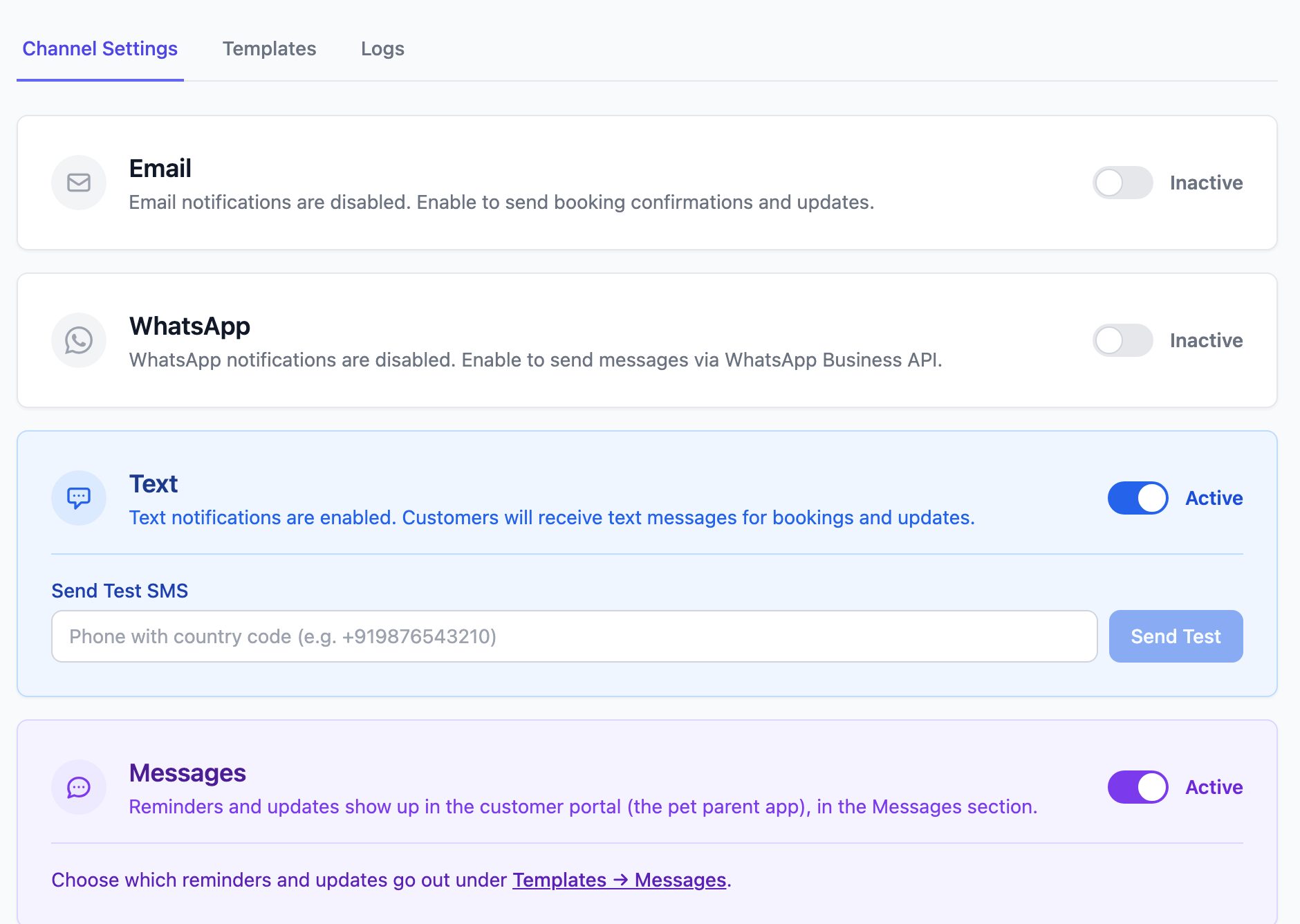
Note: The Messages card controls chat in the customer portal. Chat messages are free and work even if text messages are off.
To read and reply to messages
Click Inbox in the left menu. A number next to Inbox shows how many unread messages you have. In the conversation list, unread conversations are in bold with a dot and a new tag. A ↩ arrow means the customer sent the last message.
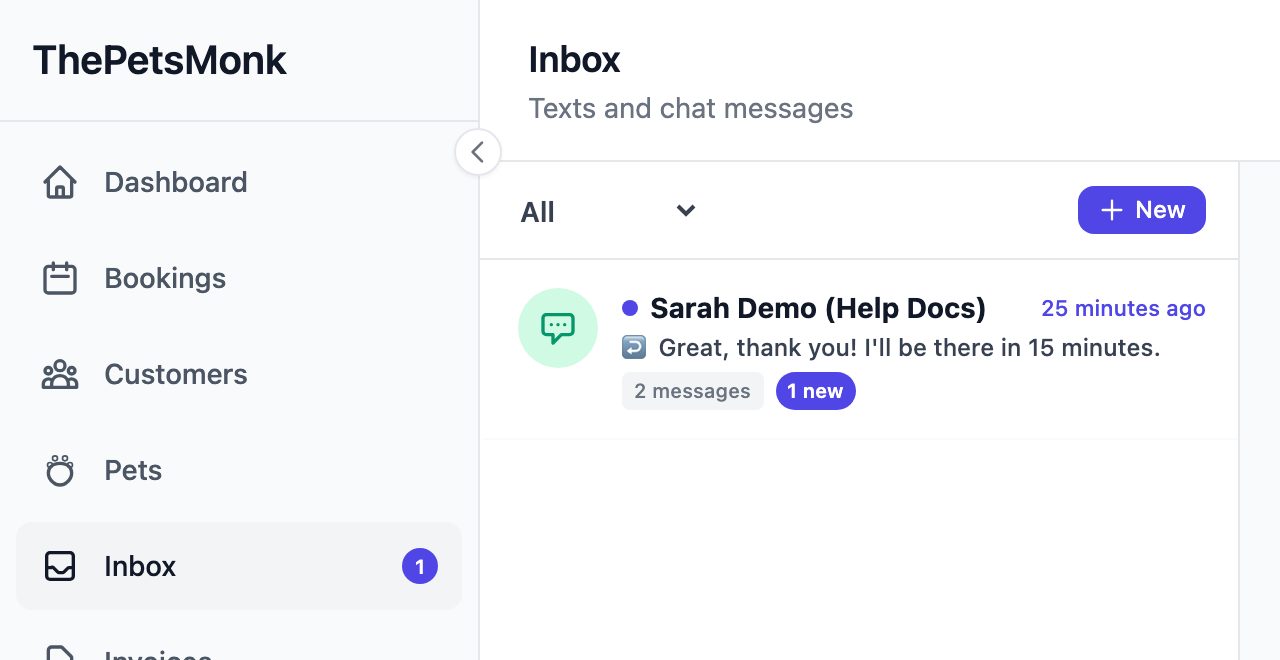
(Optional) Use the filter at the top of the list to show All, Unread, Chat, Text or Starred conversations.
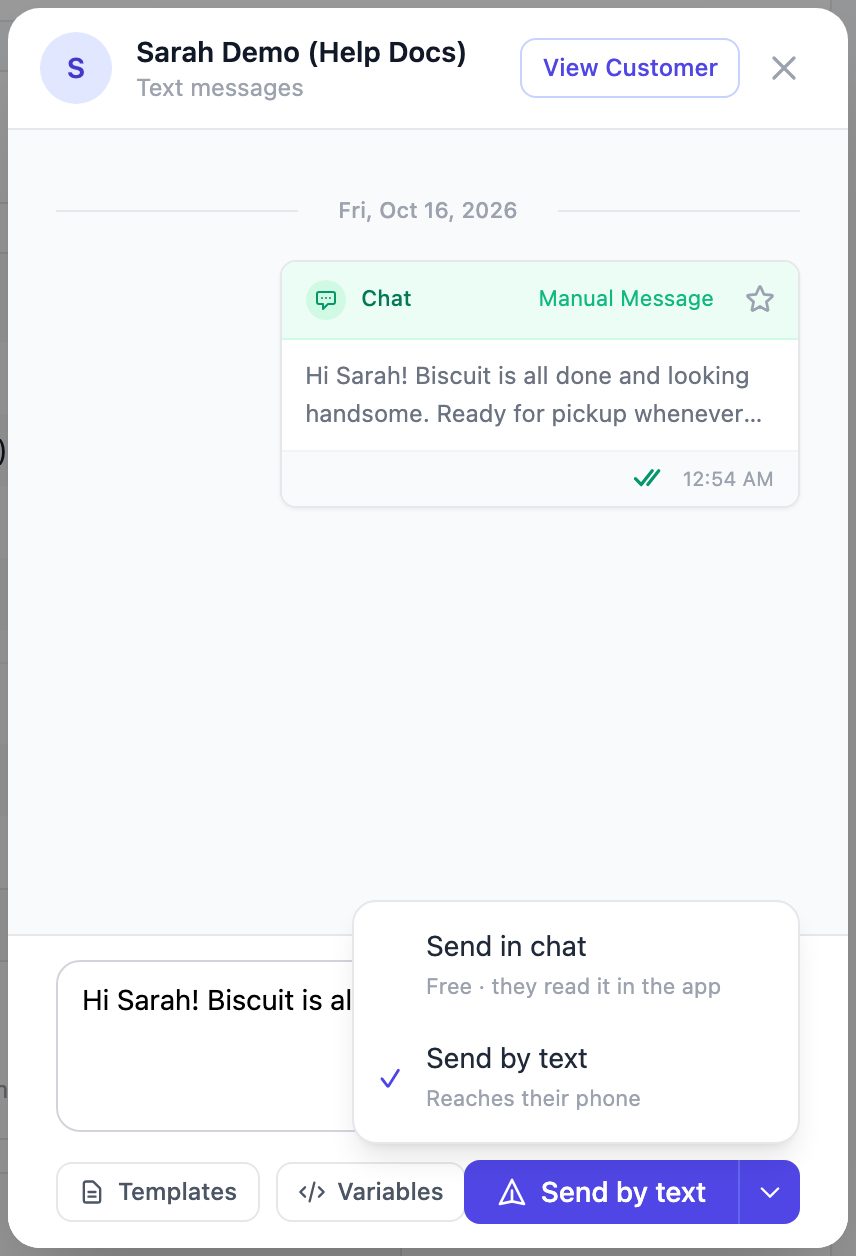
Click a conversation to open it. Opening a conversation marks it as read. Customer messages appear on the left, labelled Text or Chat. Your messages and automatic reminders appear on the right. Two ticks mean the message was delivered.
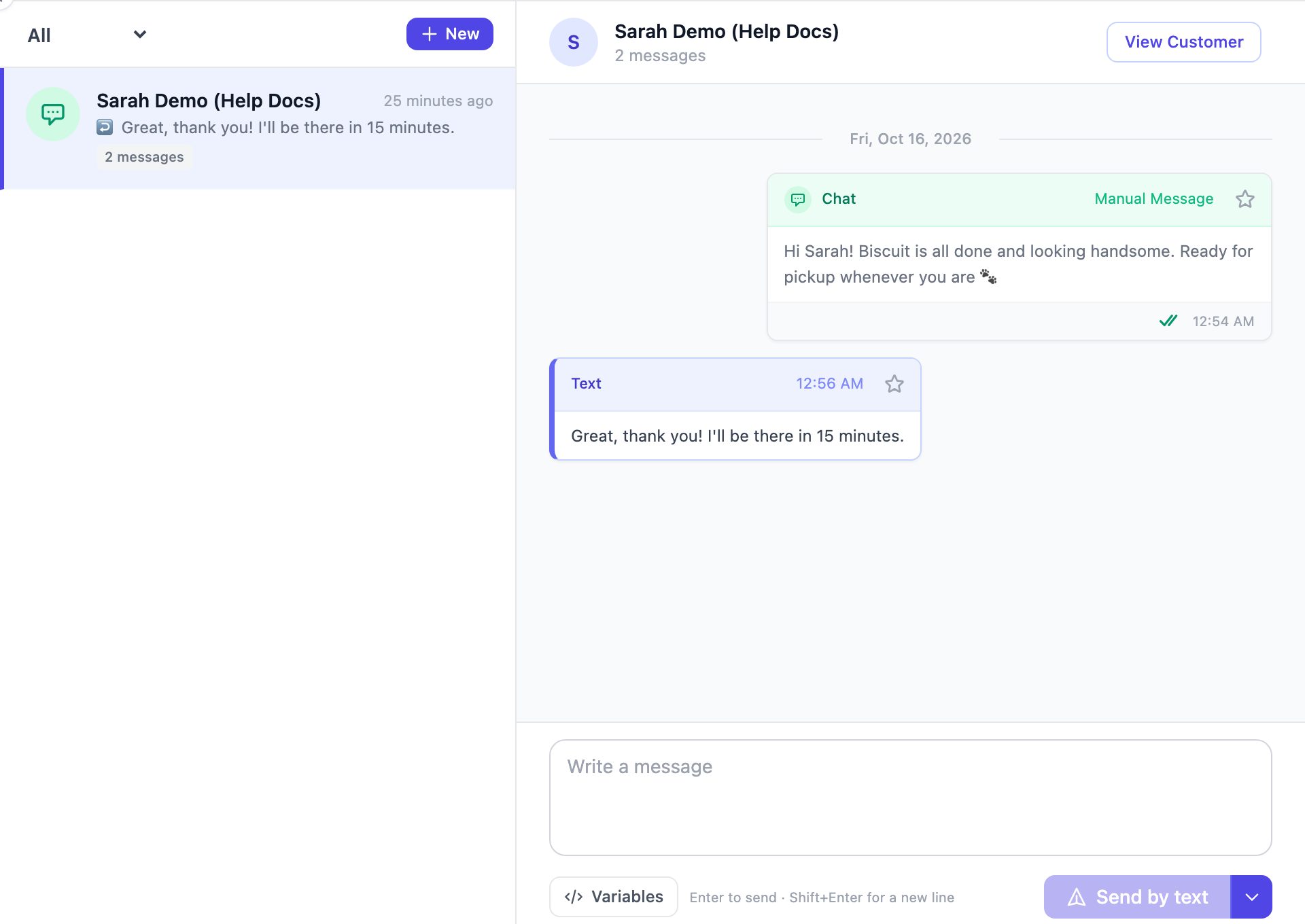
Type your reply in the Write a message box.
- Click Templates to start from one of your saved text templates.
- Click Variables to insert details such as the customer's or pet's name.
- Press Enter to send, or Shift + Enter to start a new line.
Click Send by text or Send in chat. Your reply goes back the same way the customer last messaged you. To switch, click the arrow next to the send button and choose:
- Send by text: goes to the customer's phone.
- Send in chat: free, and the customer reads it in the customer portal.
Tip: Click the star on any message to save it. Choose Starred in the filter to find saved messages later.
To start a new conversation
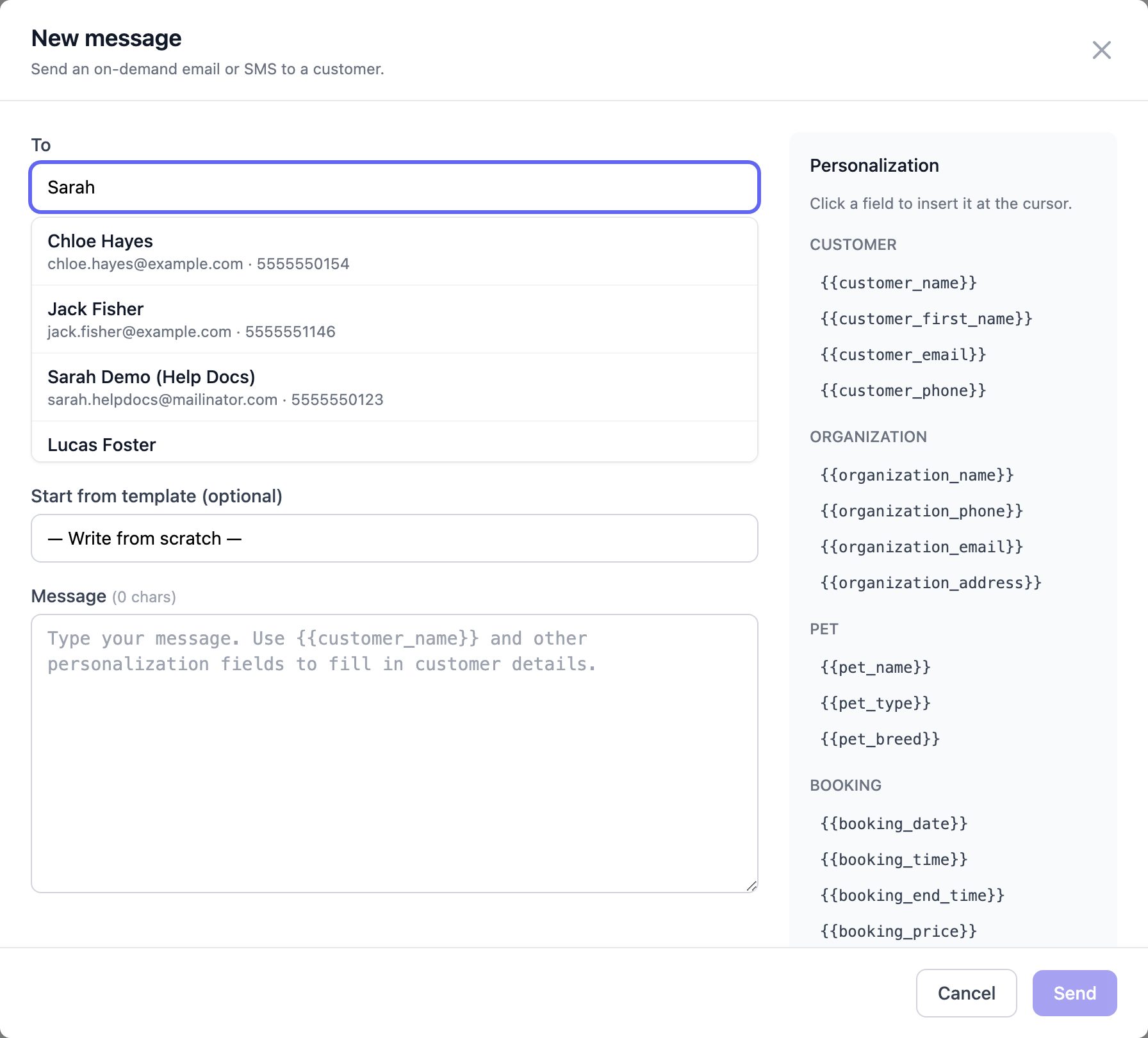
In the Inbox, click New (or New message).
In the To field, type at least two letters of the customer's name and select them from the list.
(Optional) Pick a template under Start from template (optional), or write your own message. Click a field under Personalization to insert it.
Click Send.
To message a customer from their profile, booking or pet
You don't have to leave what you're doing to send a message. Click Message on a customer's profile, a booking, a pet, a daycare booking or a boarding stay. The conversation opens in a panel on the same page. Messages sent from a booking are linked to that booking.
Note: You can attach a photo with the Photo button when you send in chat. Photos can't be sent by text.
Note: If a customer replies STOP, they stop getting text messages from you. They can text START to receive them again. Their message still shows in your Inbox.