Daycare lets you book pets in for the day, with a drop-off and pick-up time. You set a full-day price and a half-day price for each daycare service, plus how many pets you can take at once. When a pet goes home, you check them out and ThePetsMonk charges the right rate based on how long they actually stayed.
Step 1: Turn on daycare
- Go to Settings and select Modules under Business.
- Switch on Daycare. Daycare now appears in the left menu. Once Daycare or Boarding is on, Bookings is renamed Grooming.
Note: Daycare needs a physical location, so it isn't available if you only groom from a mobile van.
Step 2: Add your daycare services
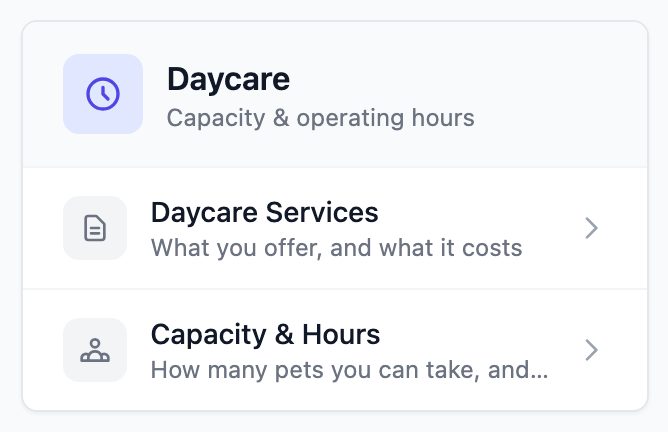
In Settings, find the Daycare card and select Daycare Services.
Click + New daycare service.
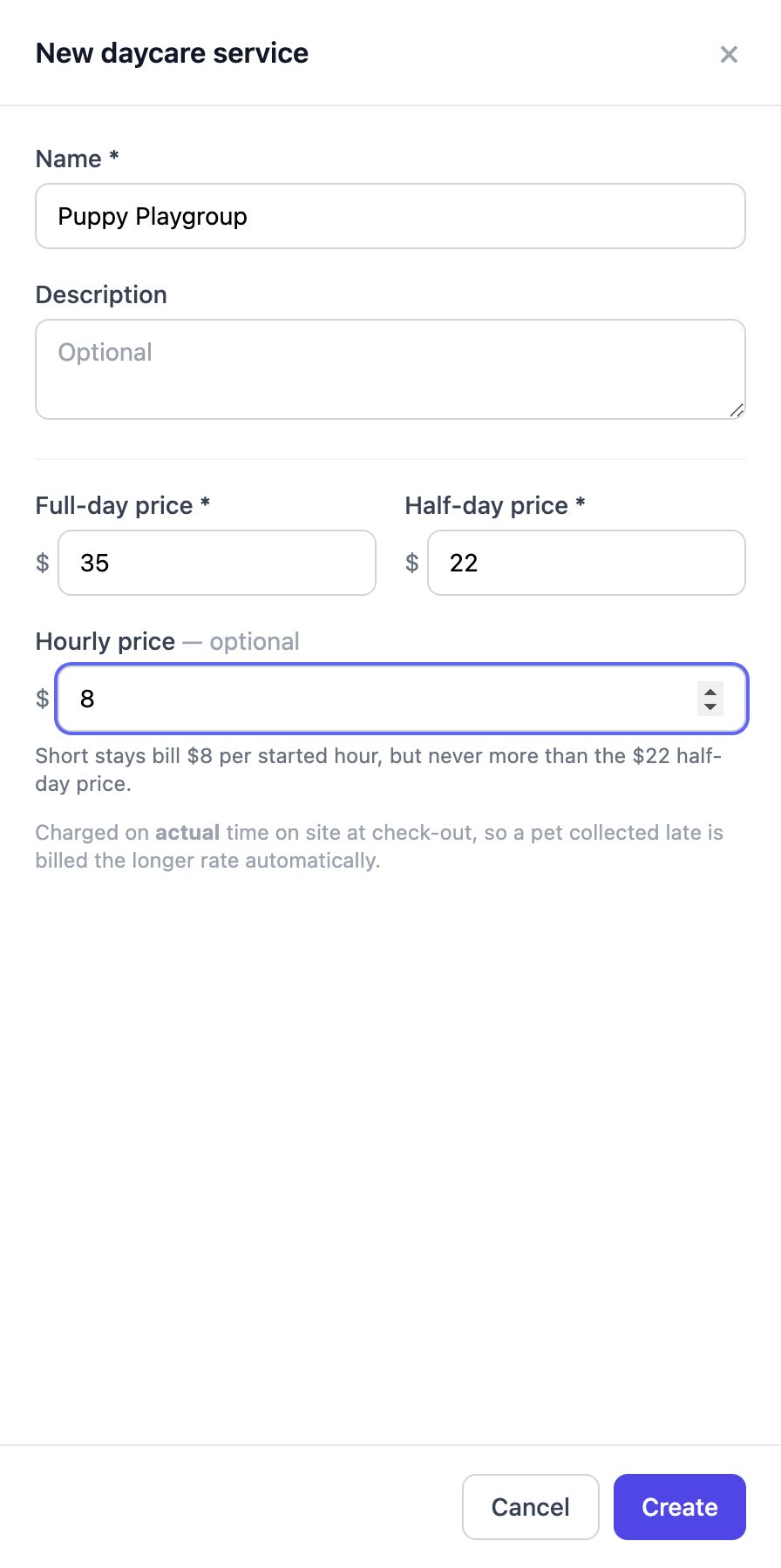
Enter a Name and, if you like, a Description.
Enter the Full-day price and the Half-day price.
(Optional) Enter an Hourly price if you sell short stays by the hour. Short stays are charged per started hour, but never more than the half-day price.
Click Create.
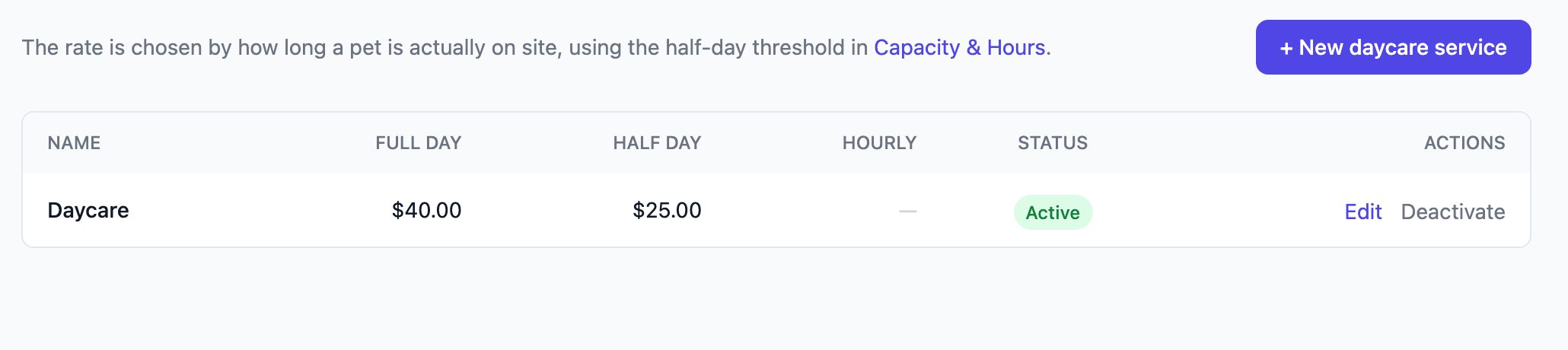
Your daycare services are listed with their prices. Click Edit to change one.
Step 3: Set capacity and hours
In Settings, on the Daycare card, select Capacity & Hours.
Set the following, then click Save.
- Daycare capacity: how many pets you can take at once. Leave it blank for no limit.
- Operating hours: drop-off and pick-up must fall inside these hours.
- Half-day up to: stays of this many hours or less are charged the half-day price. Longer stays are charged the full-day price.
- Late pick-up fee: (optional) an extra charge per pet when a pet is collected after closing time.
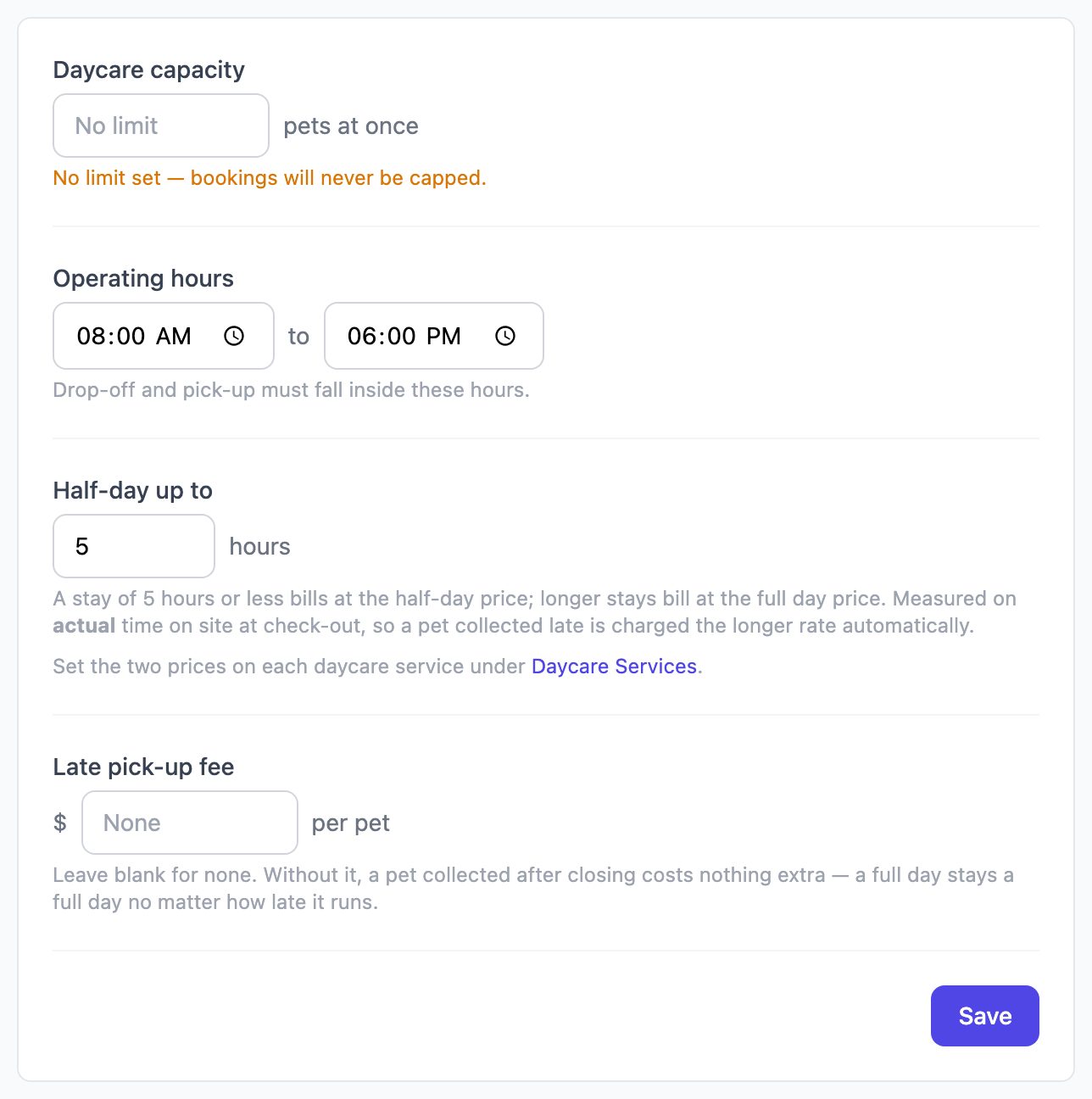
Note: Half-day or full-day is decided by the pet's actual time on site at check-out, not the booked times. A pet collected late is charged the longer rate automatically.
To book a daycare visit
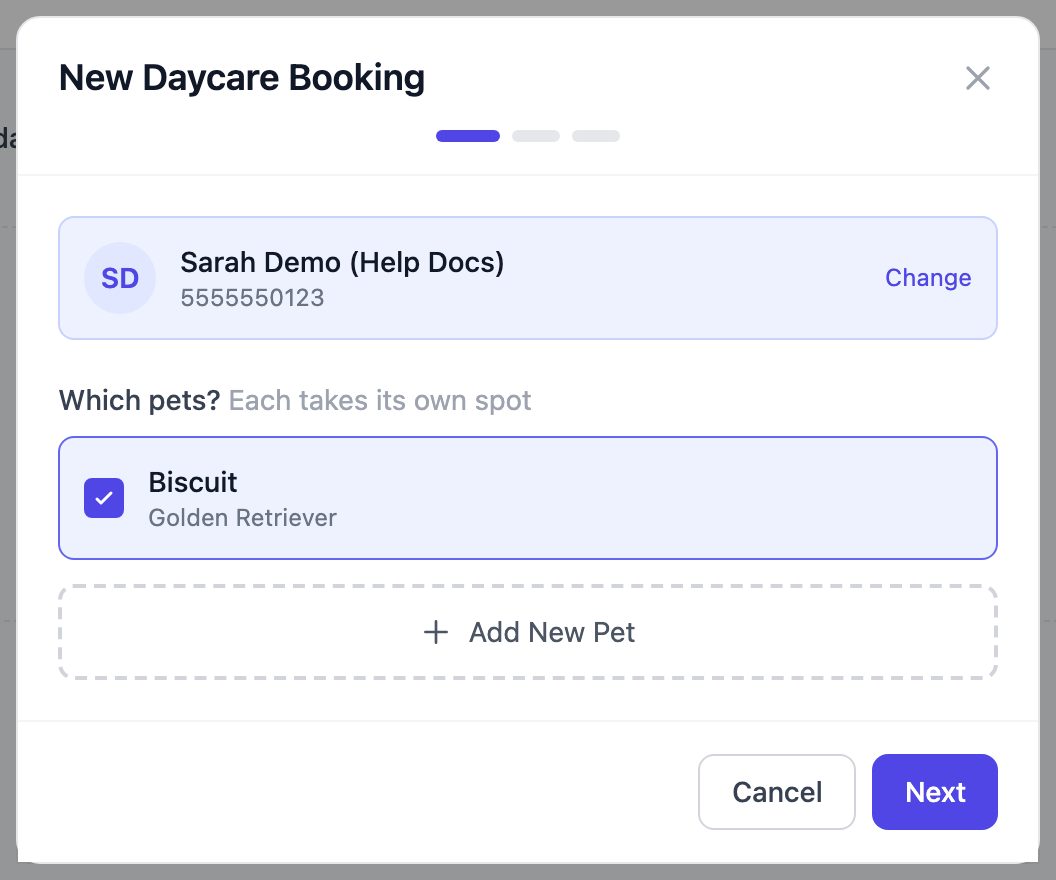
Click Daycare in the left menu, then click + New booking.
Search for the customer and select them. If they're new, click New Customer to add them here.
Select the pets that are coming, then click Next. Each pet takes its own spot.
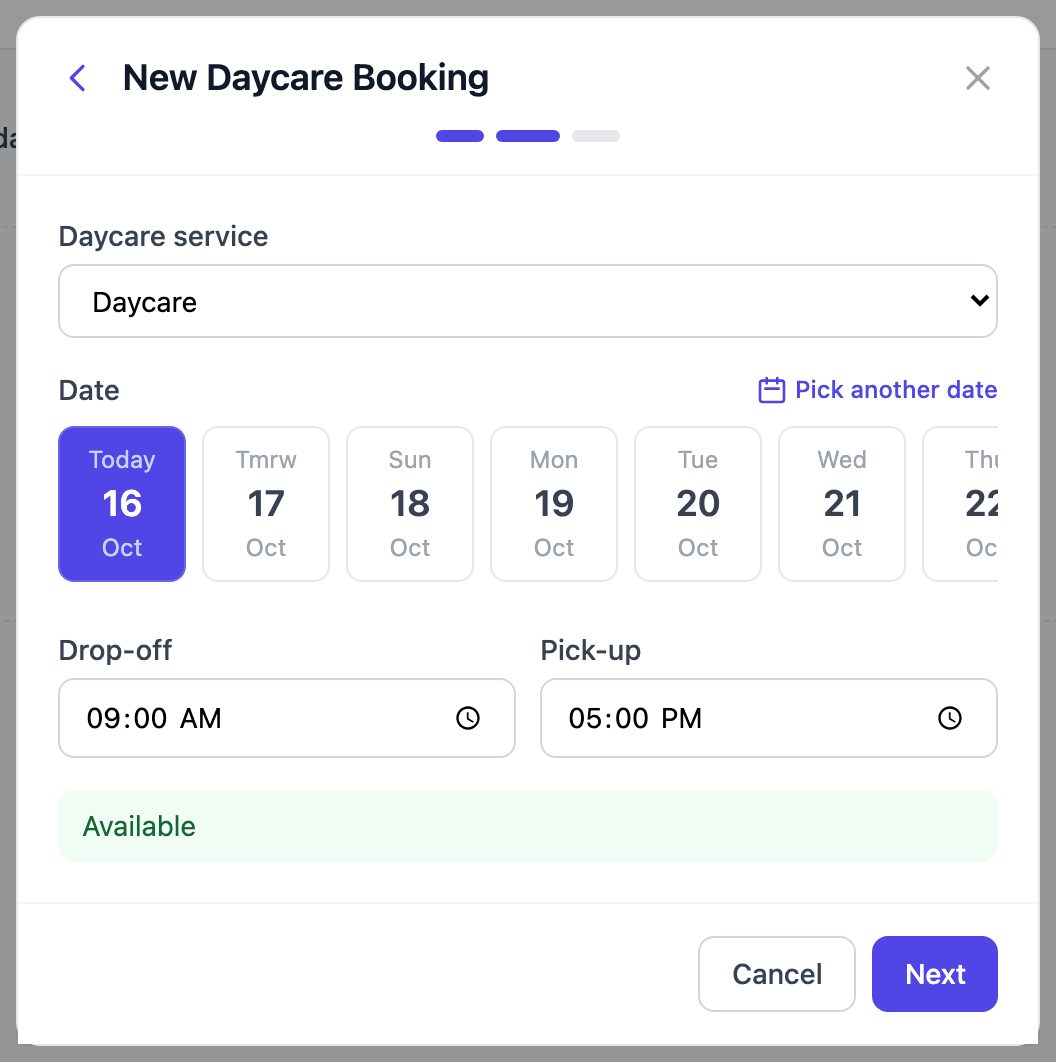
Choose the Daycare service, pick the Date, and set the Drop-off and Pick-up times. You'll see right away whether there's space. If you're at capacity, you'll see a warning.
Click Next, check the summary and price estimate, and add any Notes.
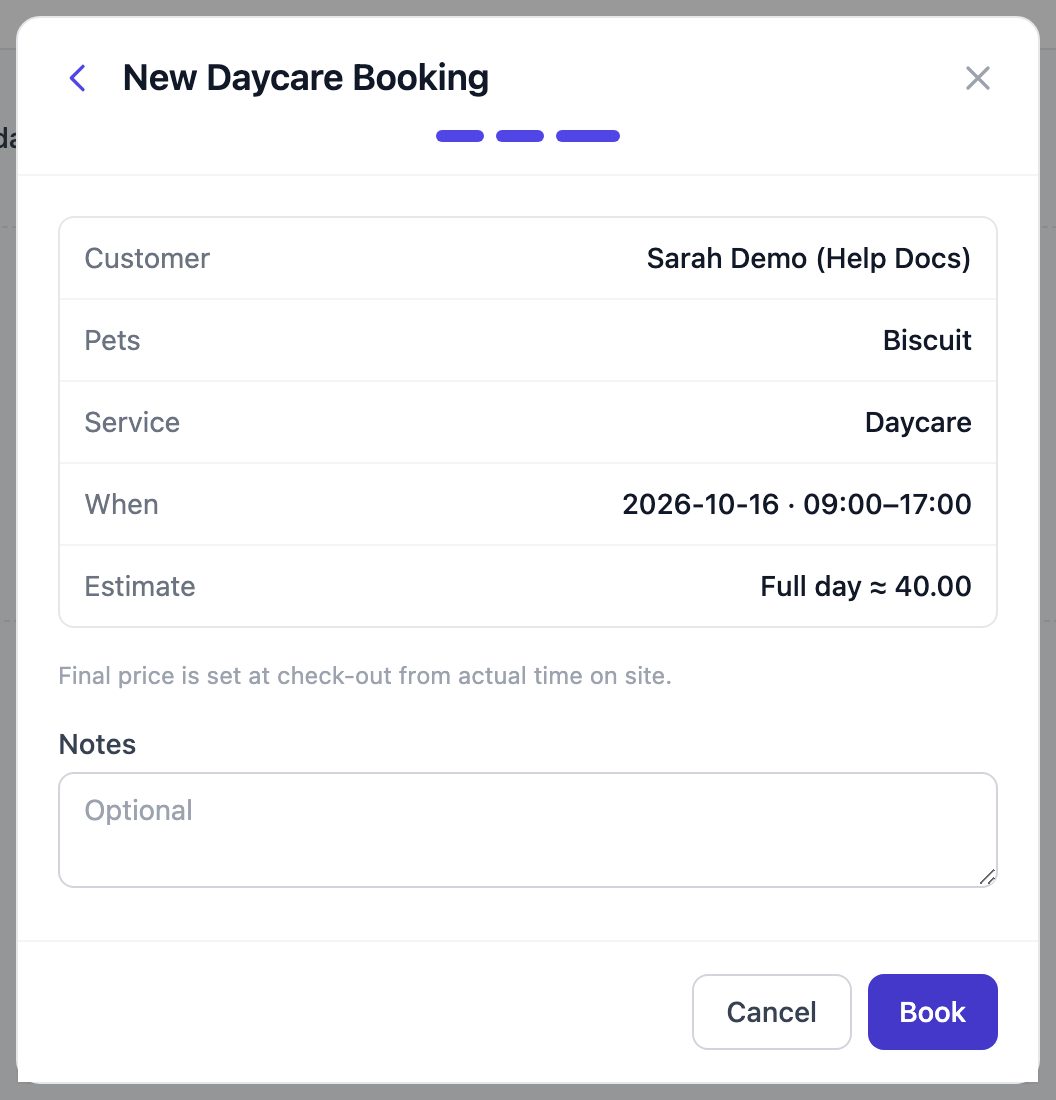
Click Book. If you're at capacity, the button changes to Book anyway so you can still take the booking.
To see who's in today
The Daycare page lists every booking for the day, with the booked and actual times. Switch to Week or Month to see how many pets are booked each day. Days at capacity are marked Full. Click a day to see its bookings.

Tip: If customers can request daycare online, a Requests tab appears here whenever a request is waiting for you.
To check a pet in and out
On the Daycare page, click the booking to open it.
When the pet arrives, click Check In.

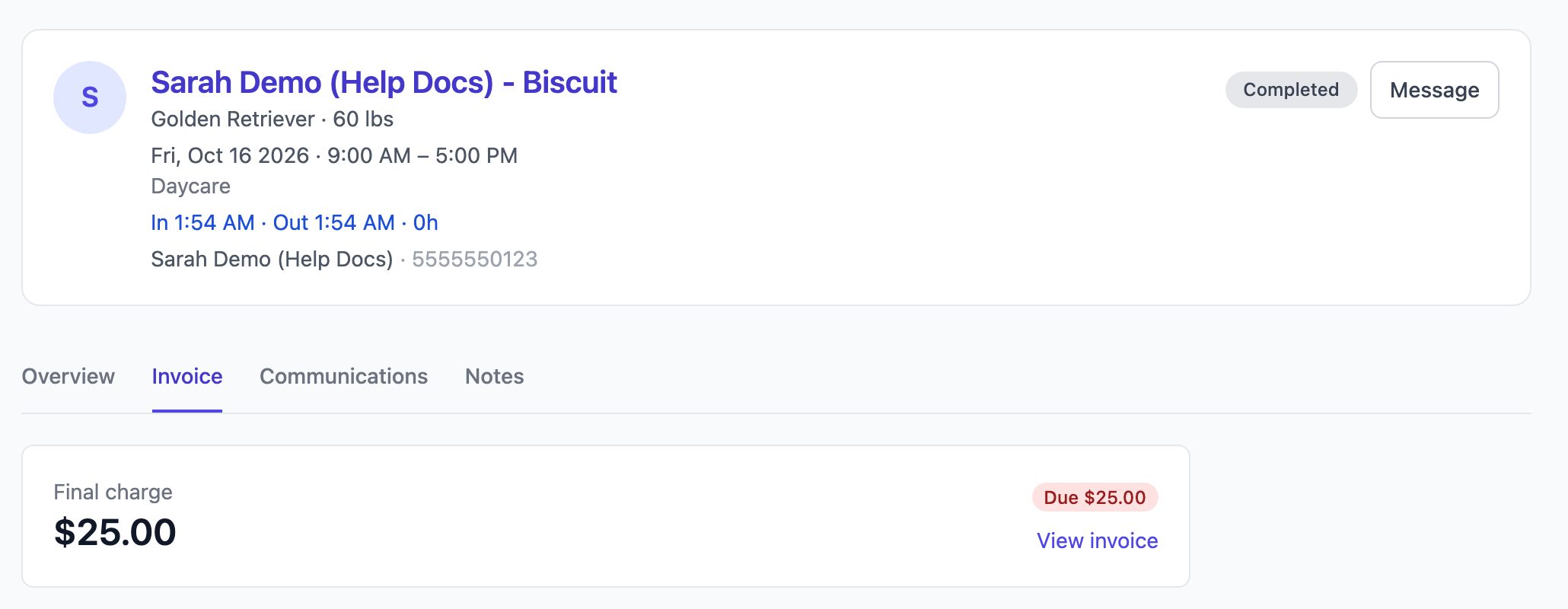
When the pet is collected, click Check Out. The final price is worked out from the actual time on site, plus any late pick-up fee, and an invoice is created.
Select the Invoice tab to see the final charge, then click View invoice to take payment.
Note: To cancel a booking or mark it as a no-show, use the ⋮ menu next to Check In.
Selling daycare packages
You can sell prepaid bundles of daycare days, for example 10 full days. Go to Settings → Packages → + New Package. In the Services step, choose Daycare, then add Half days or Full days for each daycare service. Sell the package from the customer's Packages tab. When the pet checks out, a matching package is applied automatically, and the Invoice tab shows which package covered the visit.