Boarding lets you take overnight stays alongside your grooming. You set up your accommodations (stay types) with a nightly rate and the number of beds of each. When you book a stay, ThePetsMonk shows how many nights it is, gives you a price estimate, and checks that a bed is free. When the pet goes home, you check them out and the final price is worked out from when they actually left.
Step 1: Turn on boarding
Go to Settings and select Modules under Business.
Switch on Boarding. Boarding now appears in the left menu. Once Boarding or Daycare is on, Bookings is renamed Grooming.
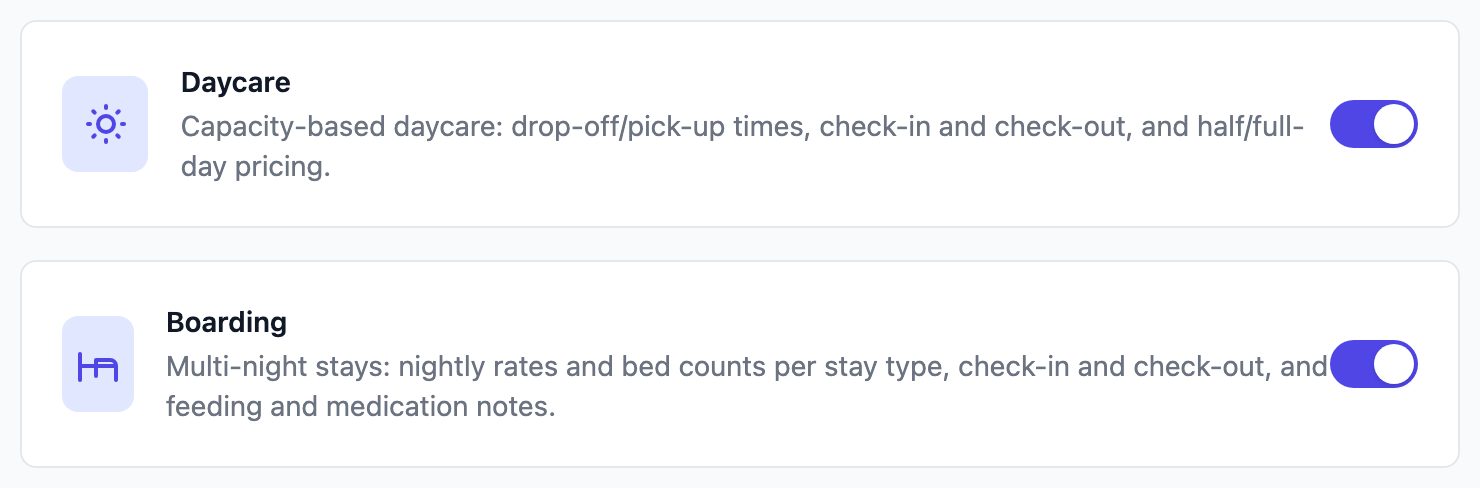
Note: Boarding needs a physical location, so it isn't available if you only groom from a mobile van.
Step 2: Add your stay types
A stay type is a kind of accommodation you offer, such as a standard run or a luxury suite. Each one has its own nightly rate and number of beds.
In Settings, find the Boarding card and select Stay Types.
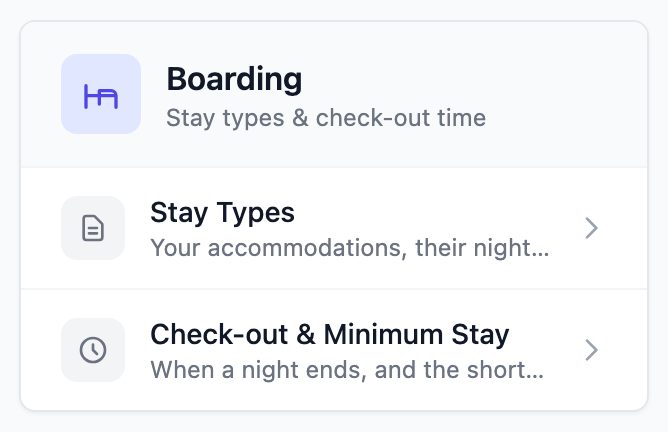
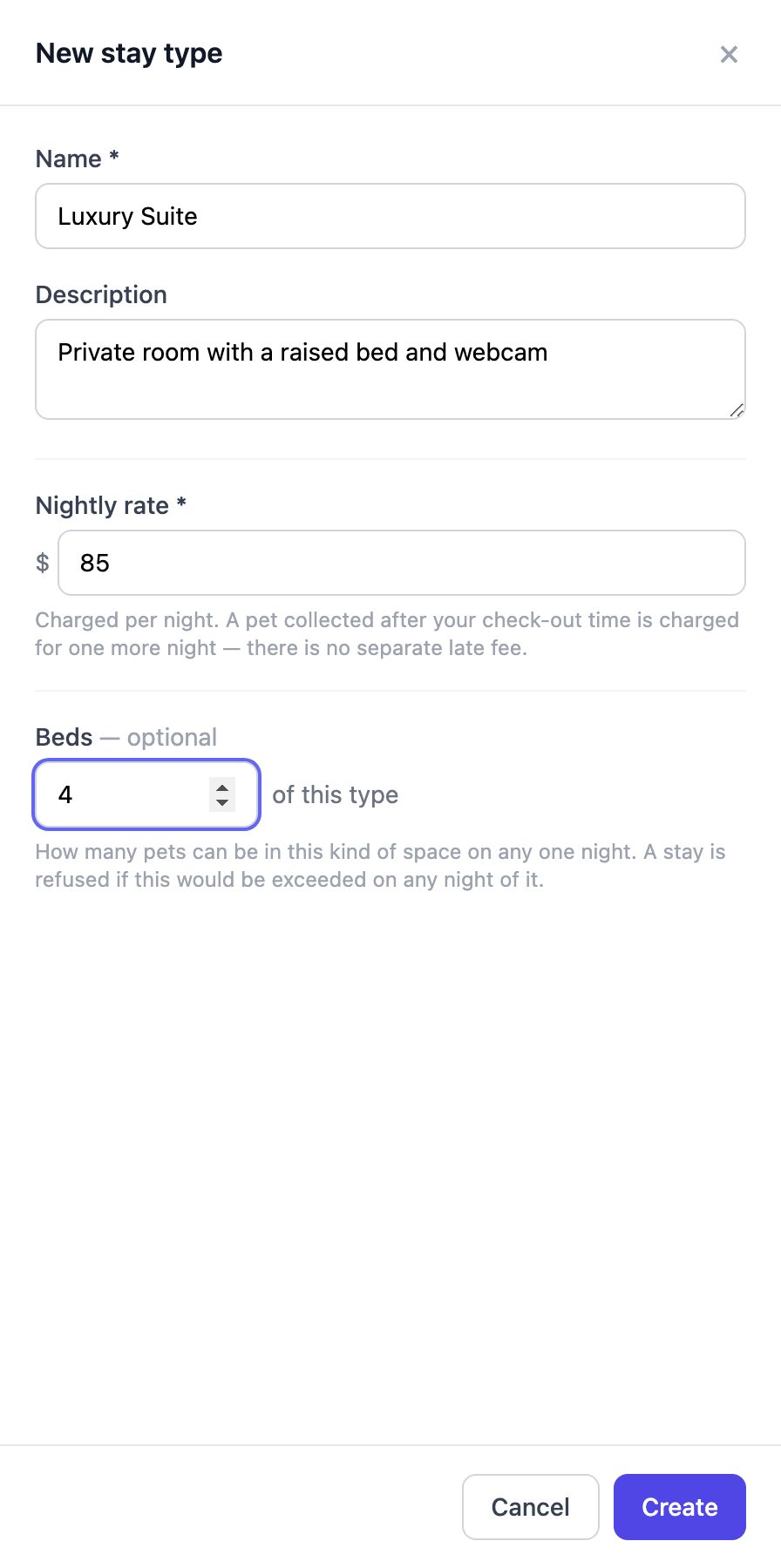
Click + New stay type.
Enter a Name and, if you like, a Description.
Enter the Nightly rate.
(Optional) Enter how many Beds of this type you have. If you leave it blank, stays of this type are never capped.
Click Create.
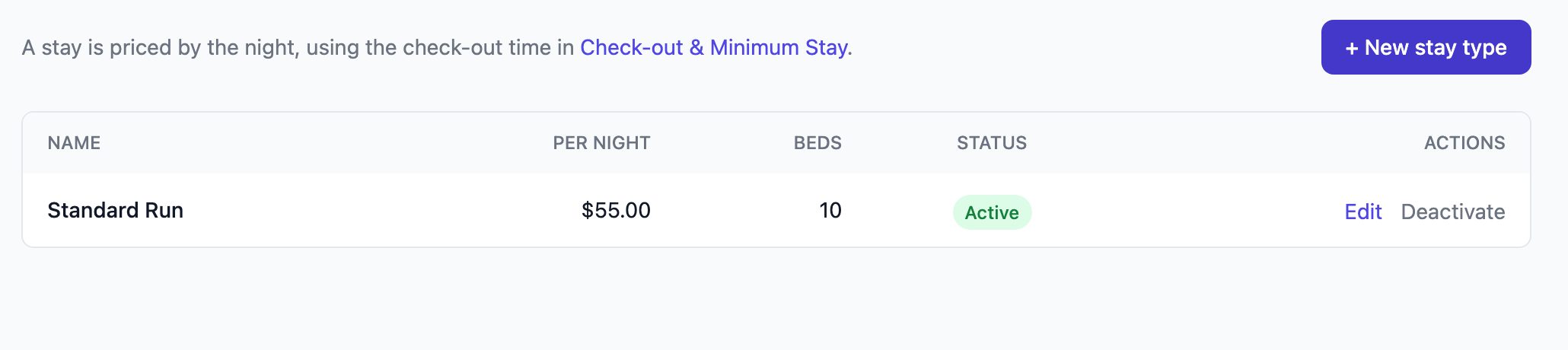
Your stay types are listed with their nightly rate, beds and status. Click Edit to change one, or Deactivate to stop offering it.
Step 3: Set check-in, check-out and minimum stay
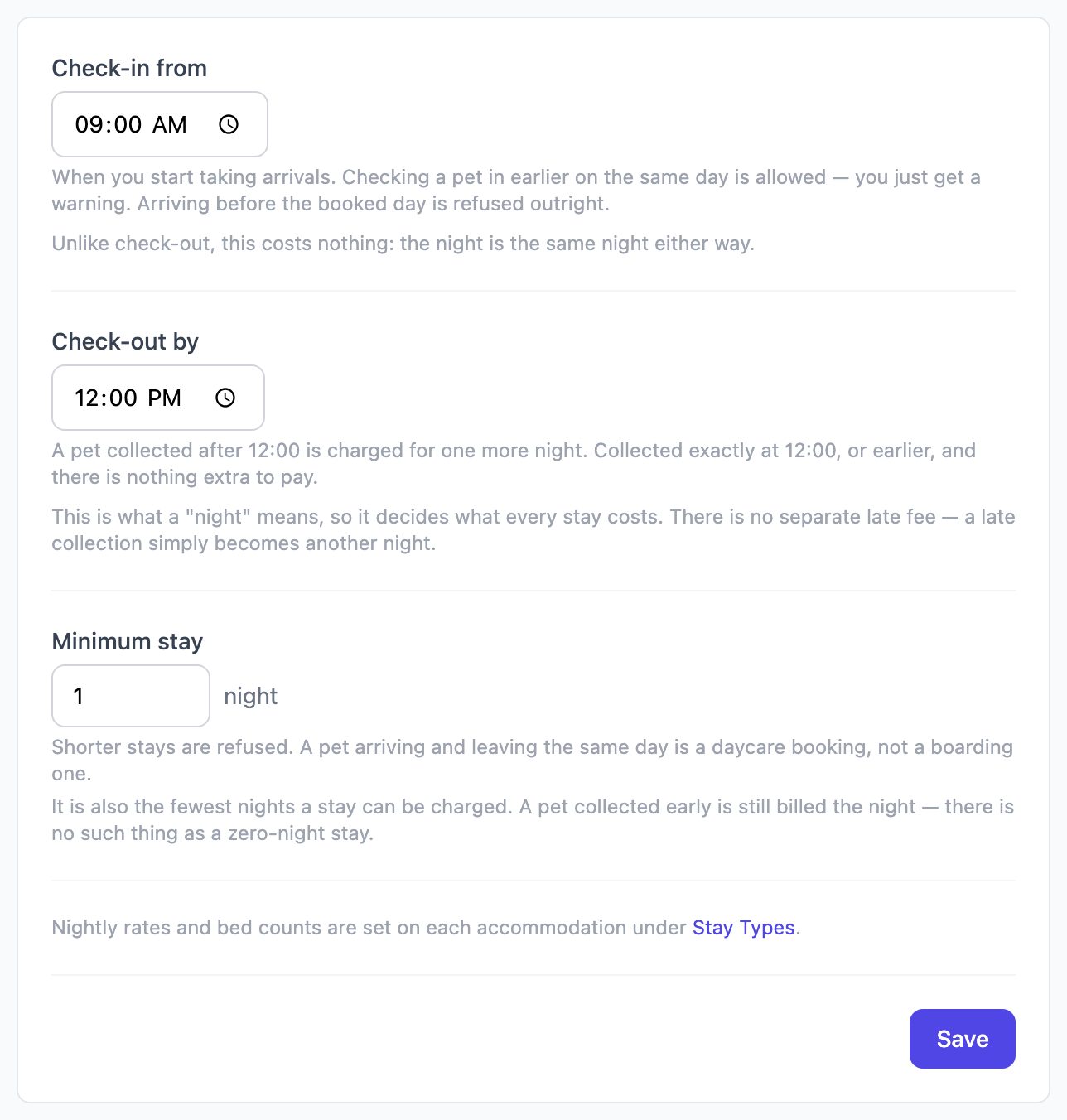
In Settings, on the Boarding card, select Check-out & Minimum Stay.
Set the following, then click Save.
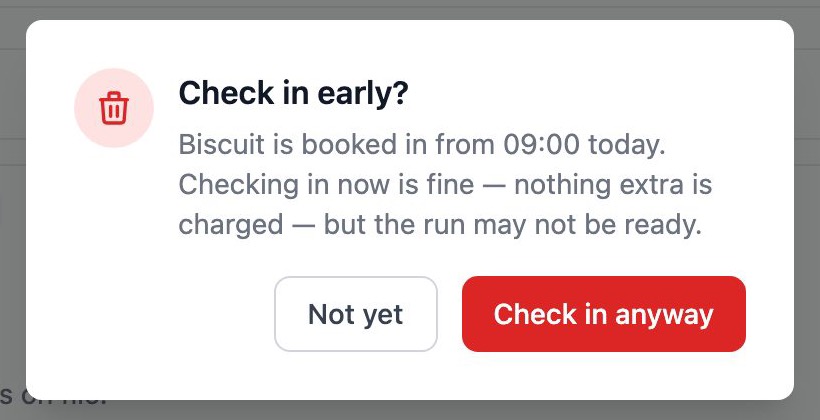
- Check-in from: when you start taking arrivals. A pet can still be checked in earlier on the day they're booked. You'll just see a warning, and nothing extra is charged.
- Check-out by: a pet collected after this time is charged one more night. There's no separate late fee.
- Minimum stay: the fewest nights you'll book, and the fewest nights a stay is charged. A pet collected early is still billed for the minimum.
To book a stay
Click Boarding in the left menu, then click + New stay.
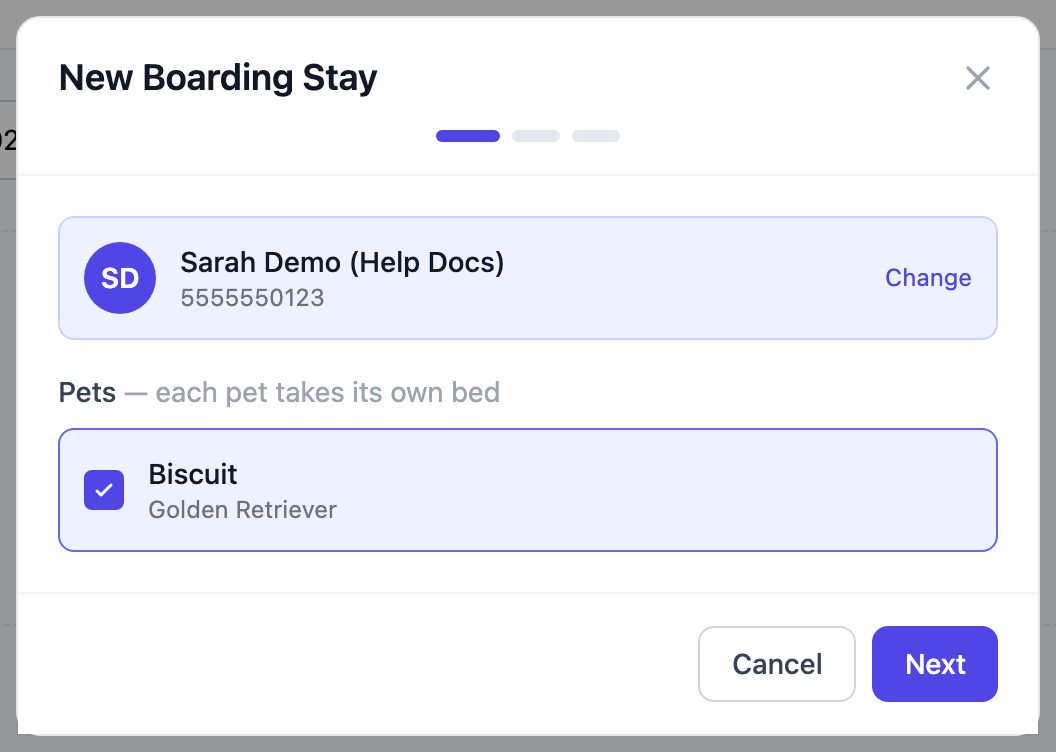
Search for the customer by name, phone, email or pet name, and select them.
Select the pets that are staying, then click Next. Each pet takes its own bed.
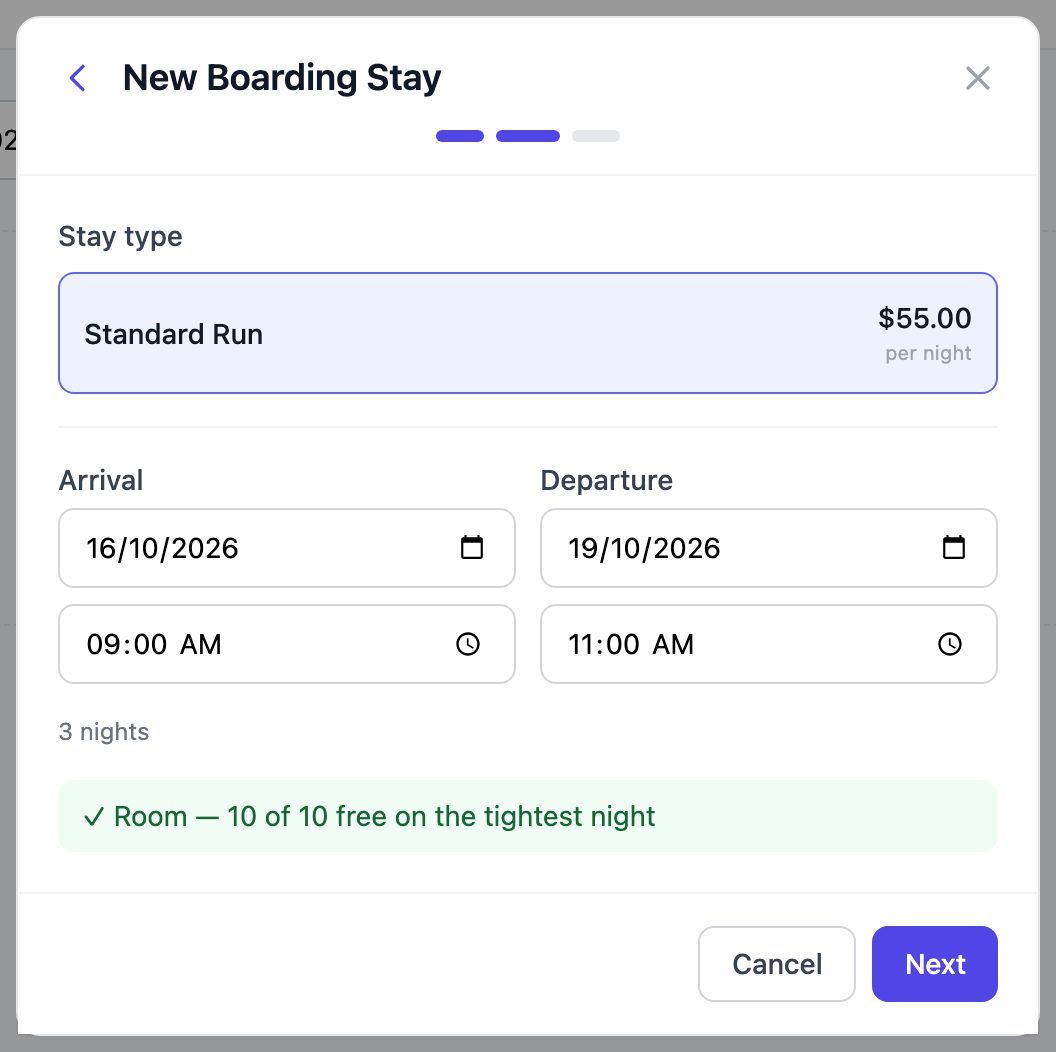
Choose the Stay type, then set the Arrival and Departure dates and times. The number of nights updates as you go, and you'll see whether a bed is free for every night of the stay. If it's full, the nights that are full are listed in red.
Click Next and check the summary and price estimate.
(Optional) Add Care instructions for your team: Feeding, Medication, Belongings and Other notes.
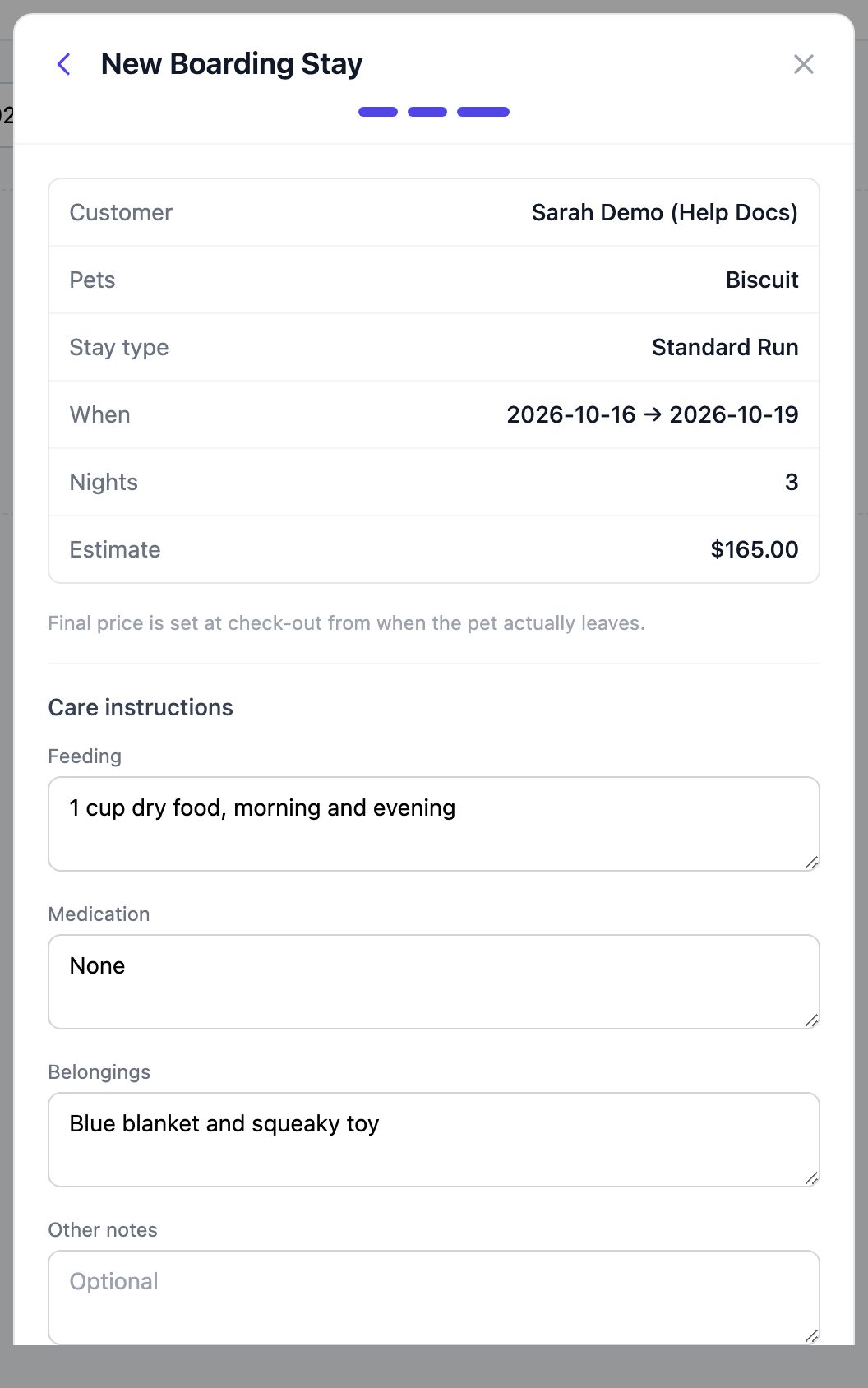
Click Book. If the stay type is full, the button changes to Book anyway so you can still take the booking.
Note: A pet arriving and leaving on the same day is a daycare visit, not a boarding stay, so it can't be booked here.
To see who's staying
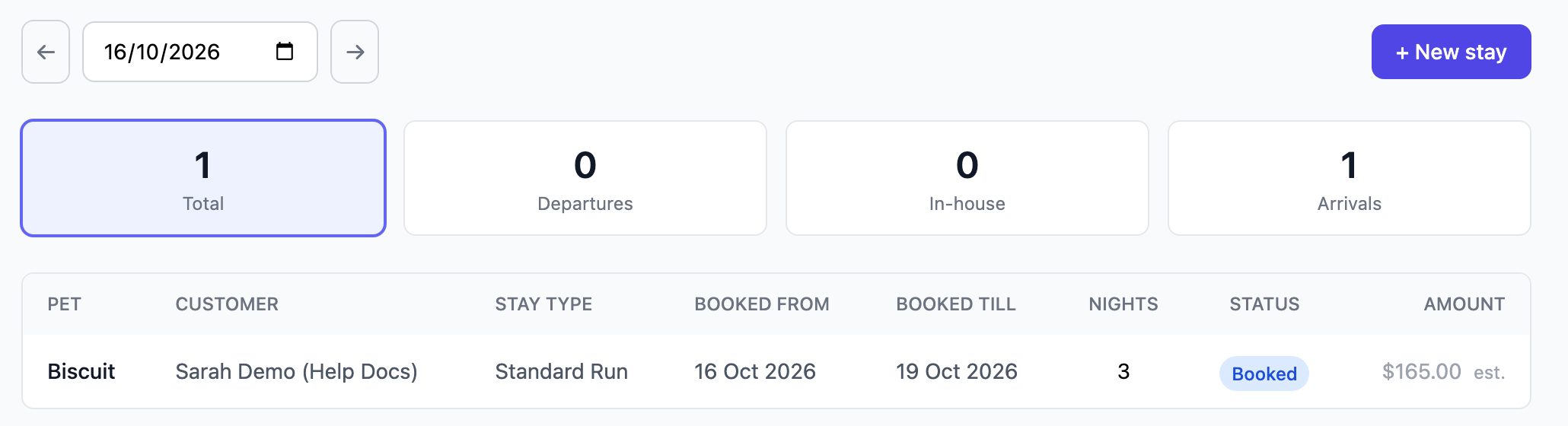
The Boarding page lists every stay for the selected day. Use the arrows or the date box to change the day. The counts at the top show Total, Departures, In-house and Arrivals. Click any count to filter the list.
Tip: If customers can request stays online, a Requests tab appears here whenever a request is waiting for you. Open the request to Approve or Decline it.
To check a pet in and out
On the Boarding page, click the stay to open it.
When the pet arrives, click Check In. If they arrive before your check-in time, you'll be asked to confirm. Click Check in anyway to continue.
The stay is now marked In house, with the time the pet arrived.
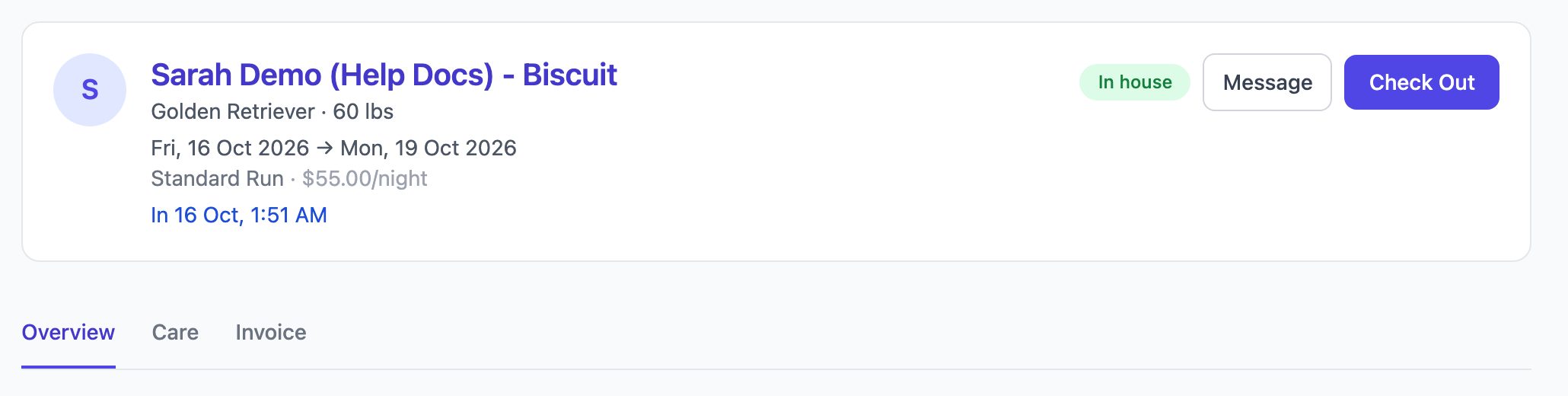
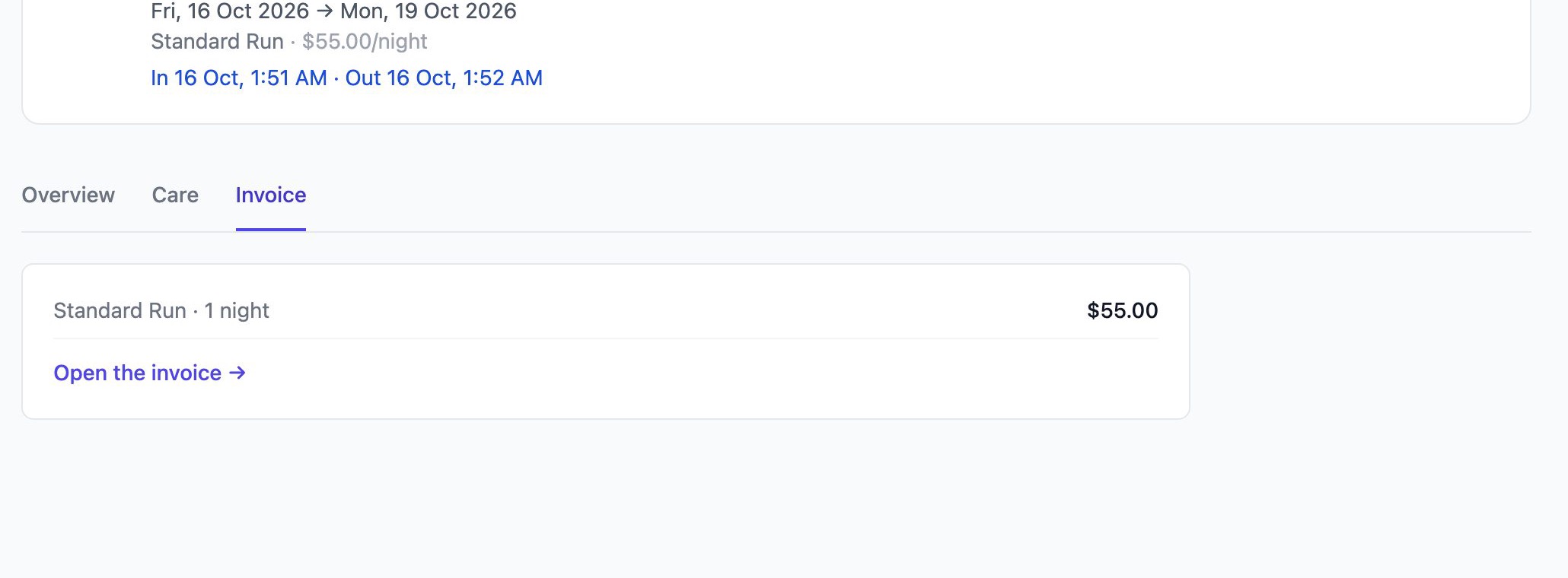
When the pet goes home, click Check Out. The final price is set from when the pet actually left, and an invoice is created.
Select the Invoice tab to see the charge, then click Open the invoice to take payment.
Note: The Care tab on a stay shows the feeding, medication and belongings notes, and you can edit them during the stay. To cancel a stay or mark it as a no-show, use the ⋮ menu next to Check In.