You can add ThePetsMonk admin app to your iPhone's Home Screen and open it like any other app, without downloading anything from the App Store. Once it's added, it opens full screen with no Safari address bar, so your bookings calendar is always one tap away.
To add the admin app to your iPhone Home Screen
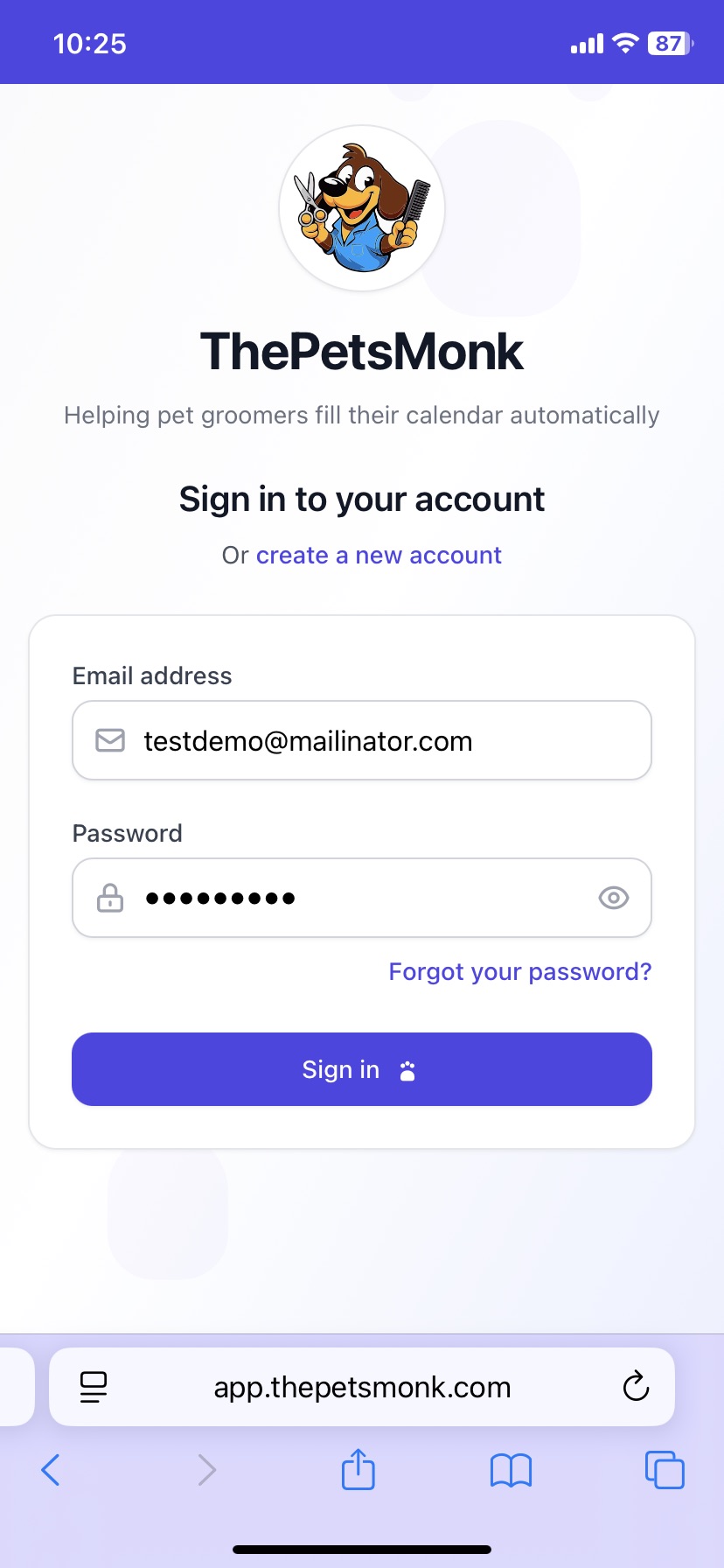
Open Safari and go to app.thepetsmonk.com, then sign in. Enter your email address and password and tap Sign in.
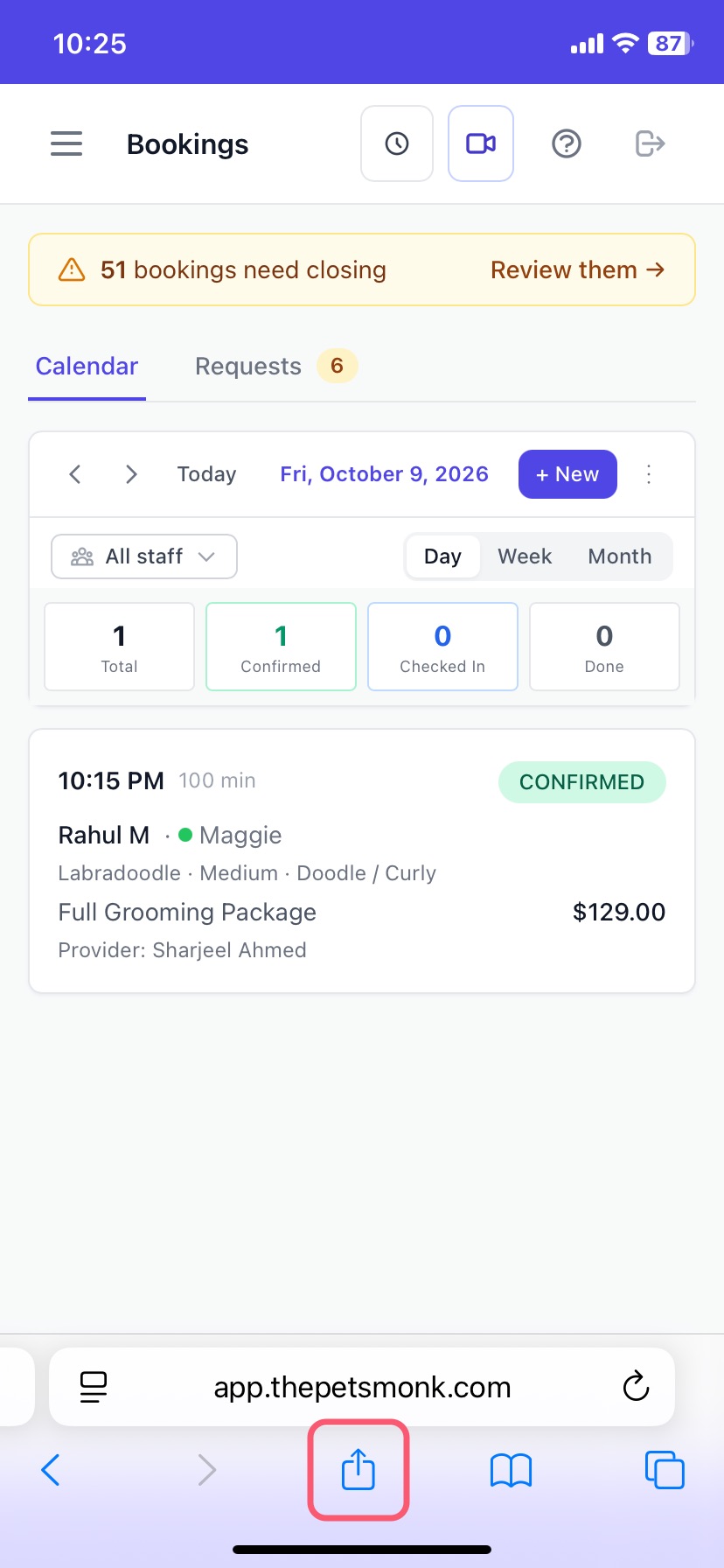
Tap the Share button in Safari's toolbar. Your Bookings calendar opens after you sign in. The Share button is the square with an upward arrow at the bottom of the screen.
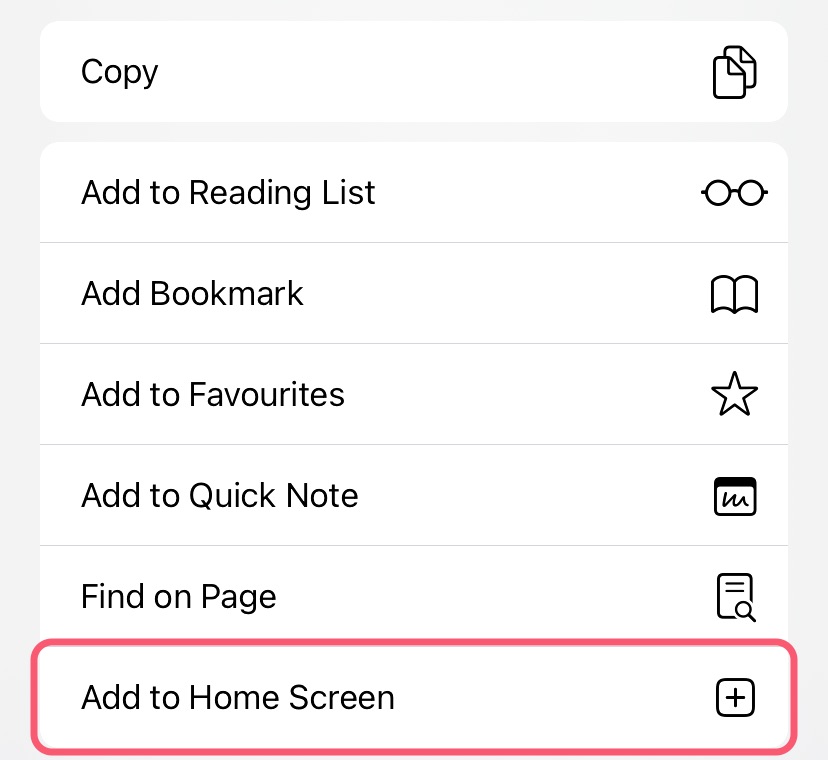
Scroll down the share menu and tap Add to Home Screen.
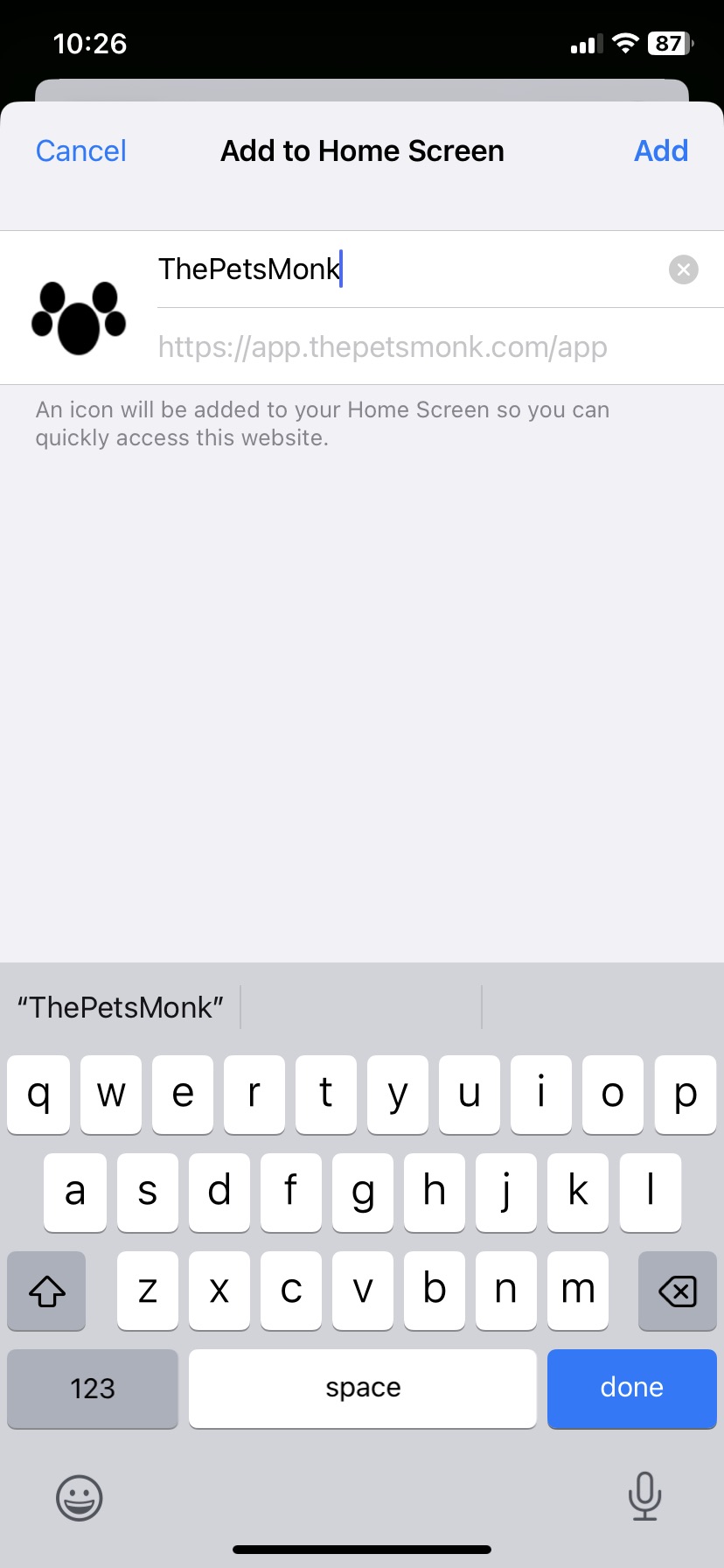
Check the name, then tap Add. The name defaults to ThePetsMonk. You can change it to anything you like; this is the label that appears under the icon.
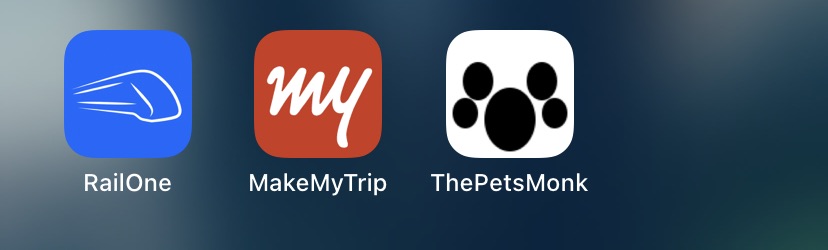
Open the app from your Home Screen. The ThePetsMonk paw icon now appears on your Home Screen. Tap it to open the admin app full screen.
Note: If you don't see the Share button, tap the ⋯ (More) button in Safari's address bar first, then tap Share.