Calendar colors let you choose what the colors on your bookings calendar mean. Color by status to see at a glance what's pending, checked in or ready for pickup. Color by groomer to see who is doing what. Color by service to spot full grooms versus quick nail trims. The setting applies to your whole business, so everyone on your team sees the same colors.
To choose how appointments are colored
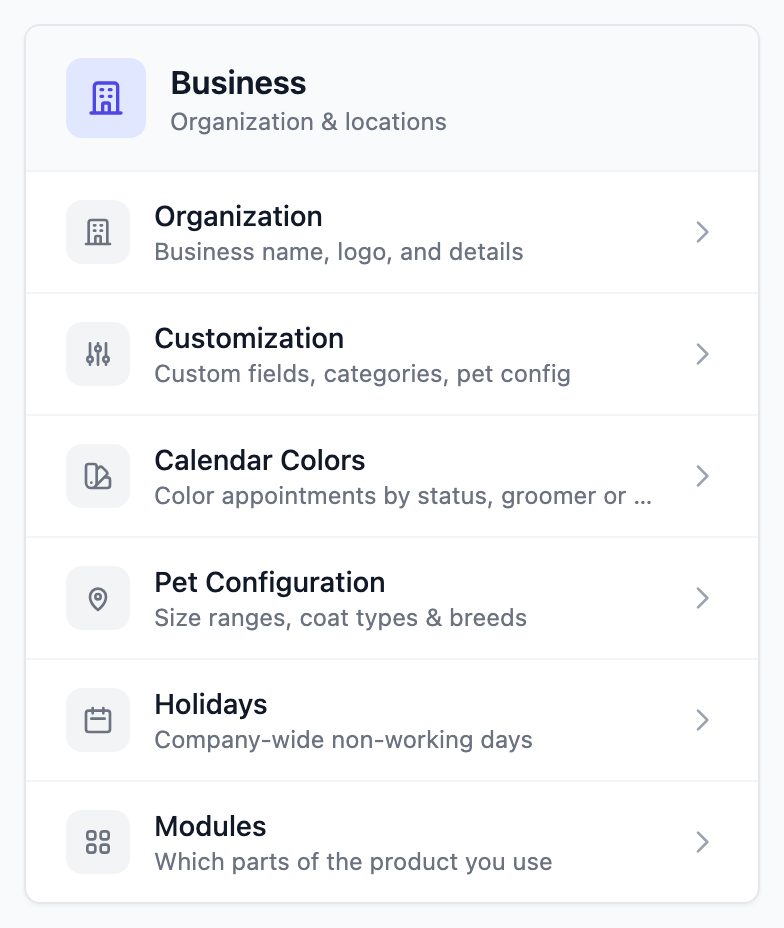
Go to Settings, then select Calendar Colors under Business.
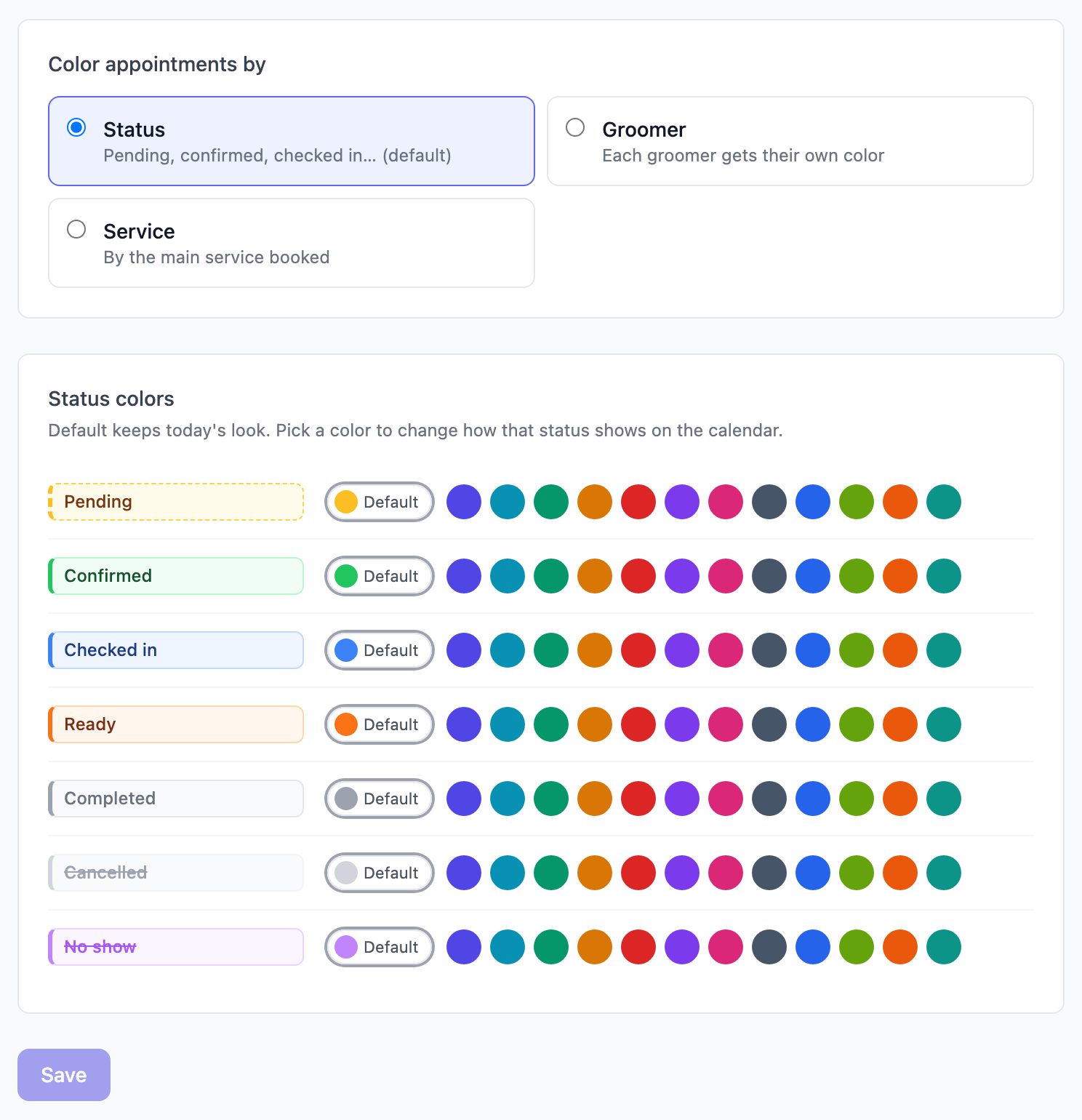
Under Color appointments by, choose one option.
- Status (default): each booking status has its own color, such as Pending, Confirmed, Checked in, Ready, Completed, Cancelled and No show.
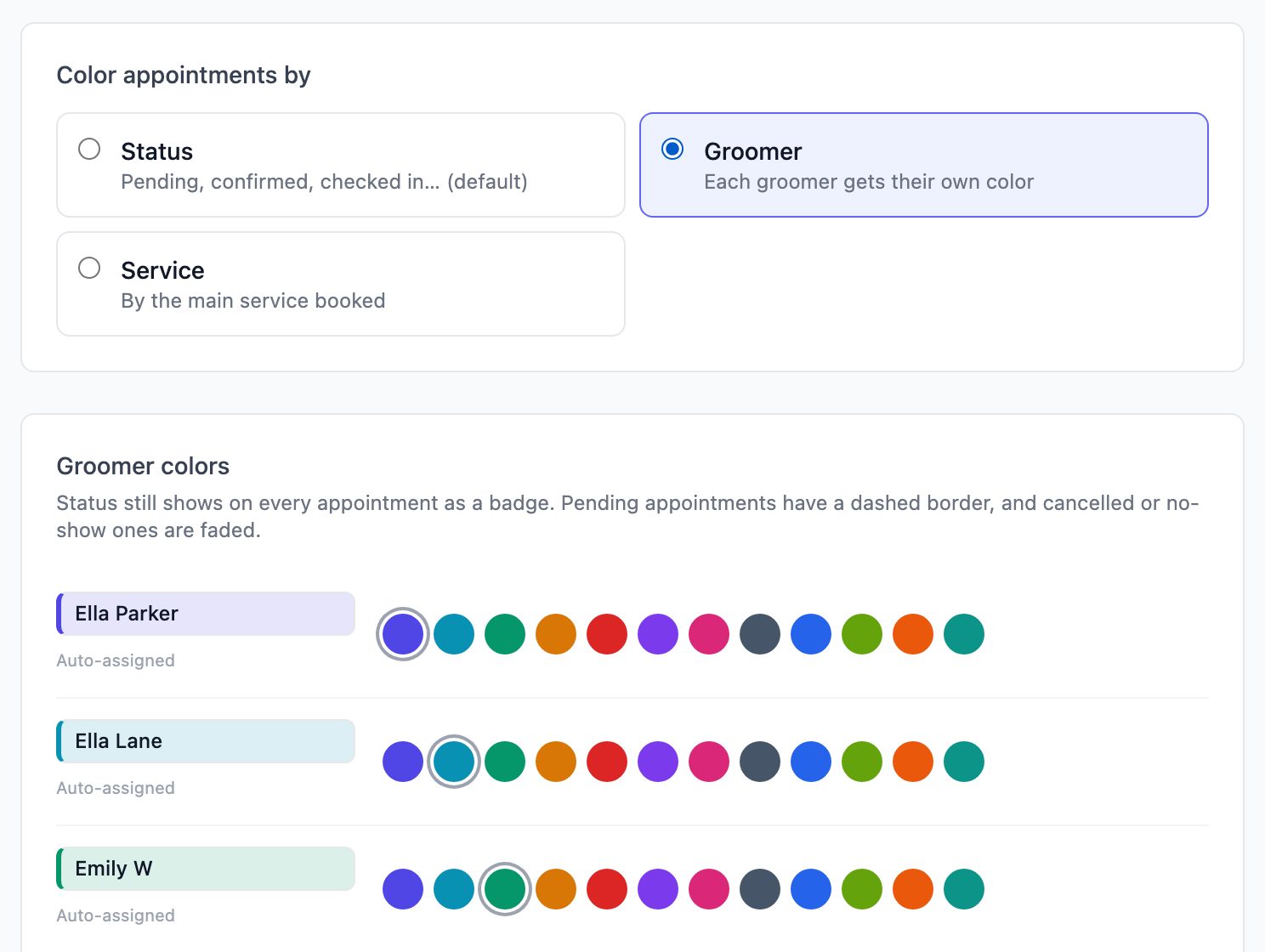
- Groomer: each staff member gets their own color.
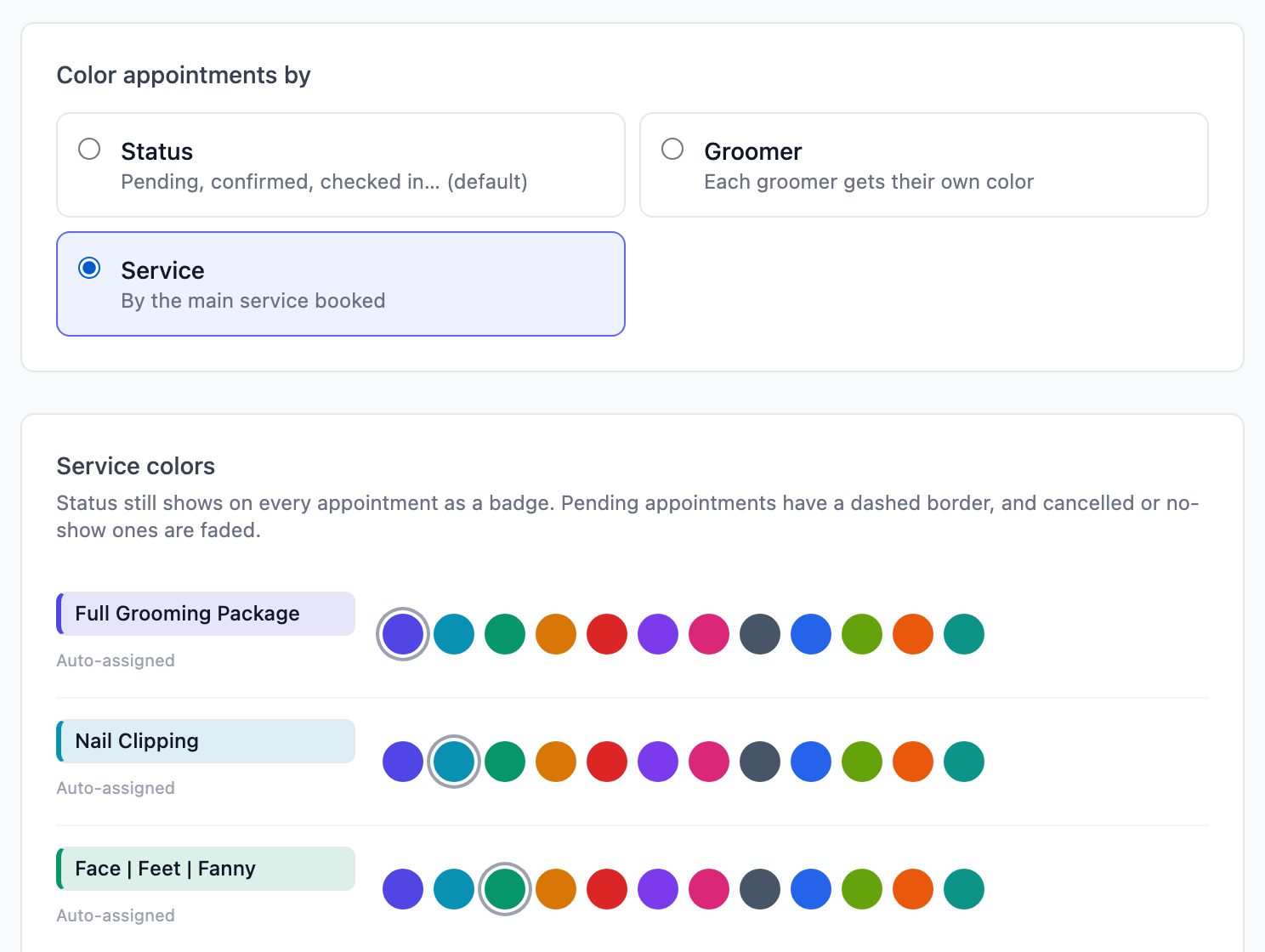
- Service: appointments are colored by the main service booked.
Note: If you run a mobile business with service areas set up, you'll also see a Service area option. It colors appointments by the zip codes in each area.
Pick a color for each row. Click any swatch to change a color. The preview chip on the left updates right away.
- In Status mode, click Default to go back to the built-in color for that status.
- In Groomer and Service modes, every row starts with a color picked for you, marked Auto-assigned. Pick a swatch to make your own choice.
Click Save. To undo your edits before saving, click Discard changes.
Open Bookings to see your calendar in the new colors. Each appointment now uses the color for its groomer, service or status.
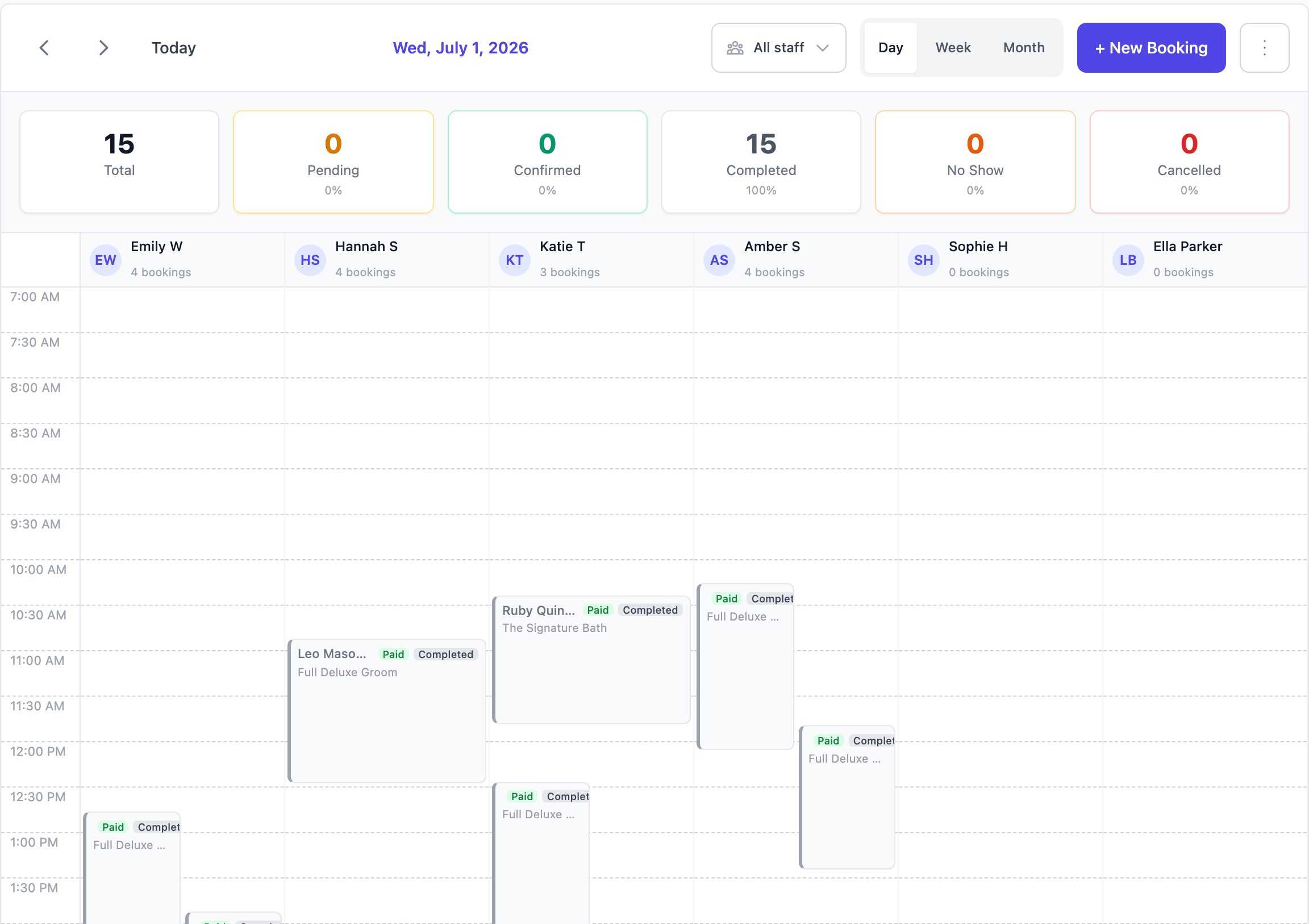
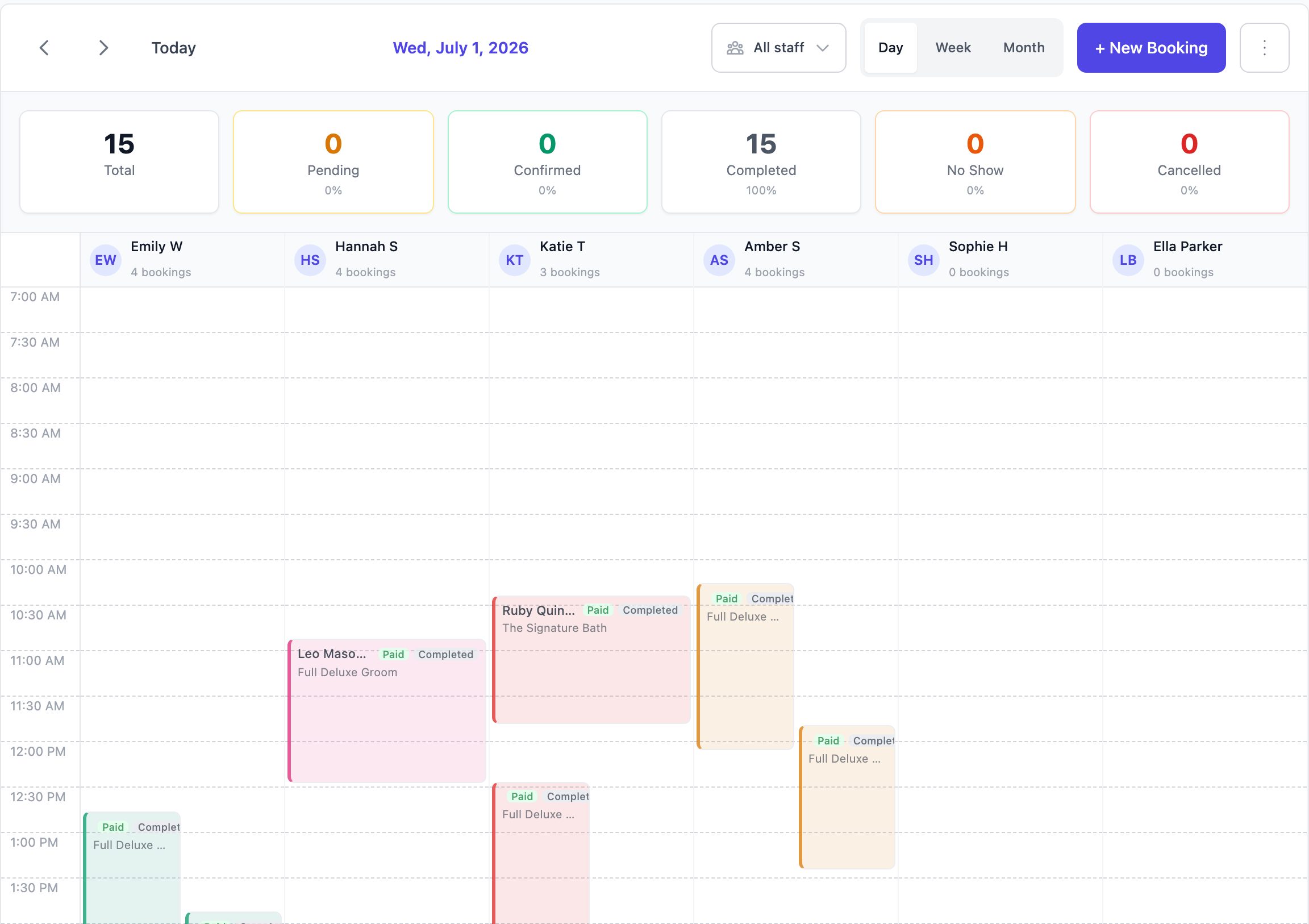
Note: When you color by groomer or service, you can still see each booking's status. The status shows as a badge on every appointment, pending appointments have a dashed border, and cancelled or no-show appointments are faded.
Tip: Choosing a color for a groomer or service keeps it fixed. Auto-assigned colors can shift when you add or remove staff or services.